
How to Create Your First MongoDB Database Step by Step
Last updated on Oct 29, 2026
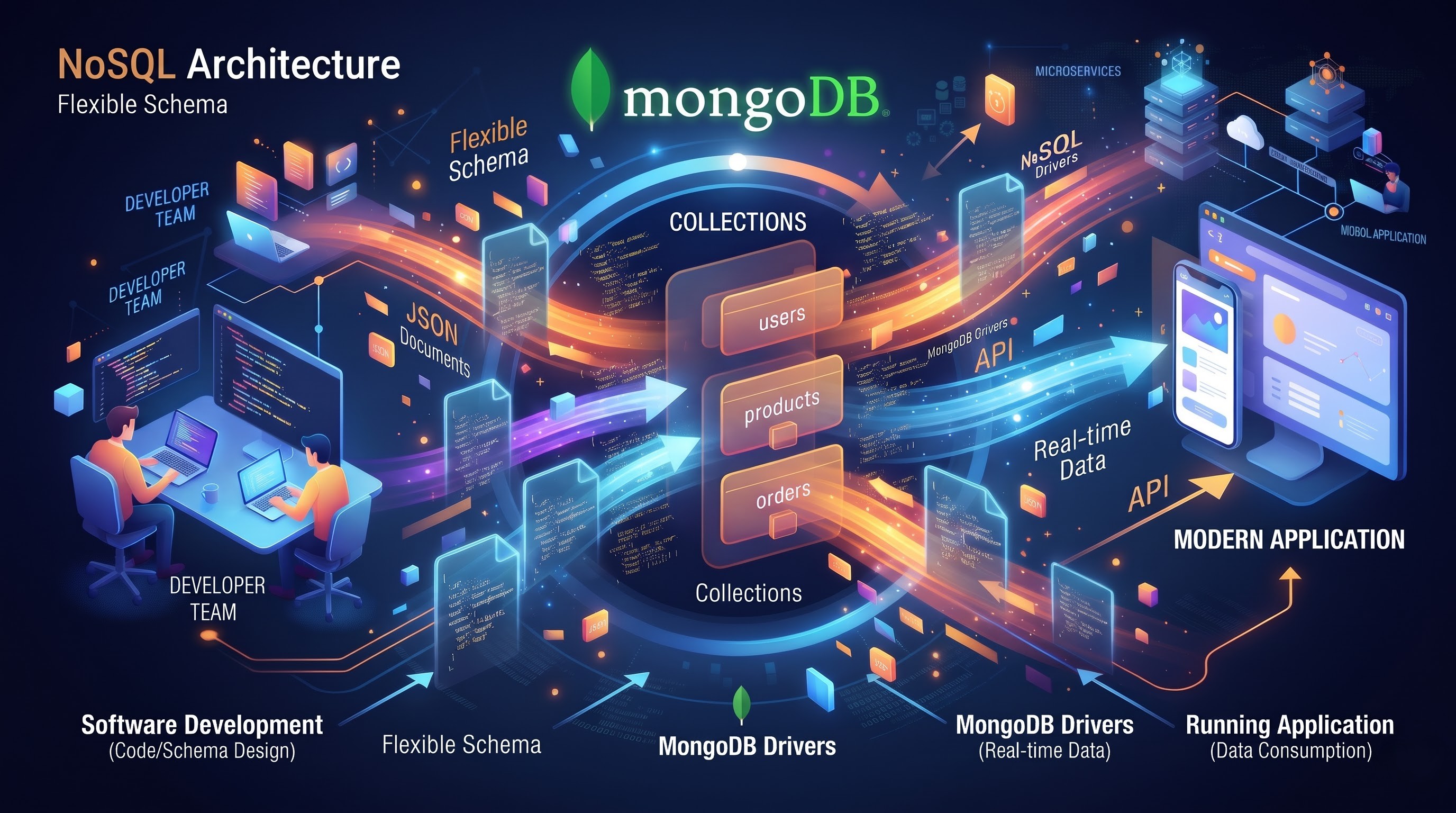
But even so, in case you do not have any experience in database development and know only traditional relational databases, the process of creation of a database appears too difficult to you. But fortunately, modern developers have several ways of storing information and one of them is document-oriented database management systems. The best example of such databases is MongoDB database management system that was created specifically for the storage of unstructured and semi-structured data used in the modern websites, mobile applications, and cloud services.
In this tutorial, you will learn everything you need to create, develop and populate your first MongoDB database without using any syntax, cheat sheet, comparison table or anything else except basic information about the principles of the MongoDB functioning.
Though self-training might turn out to be highly effective when it comes to learning basics, knowledge about the concepts of documents modeling, aggregation pipelines, and deployment could possibly become better understood in training classes. For those wishing to benefit from professional training, it is better to take online mongodb classes offered by OnlineITGuru.
Basic Principles of MongoDB Functioning
Before you start creating a database, you should have an idea of what document-oriented databases differ from tabular databases.
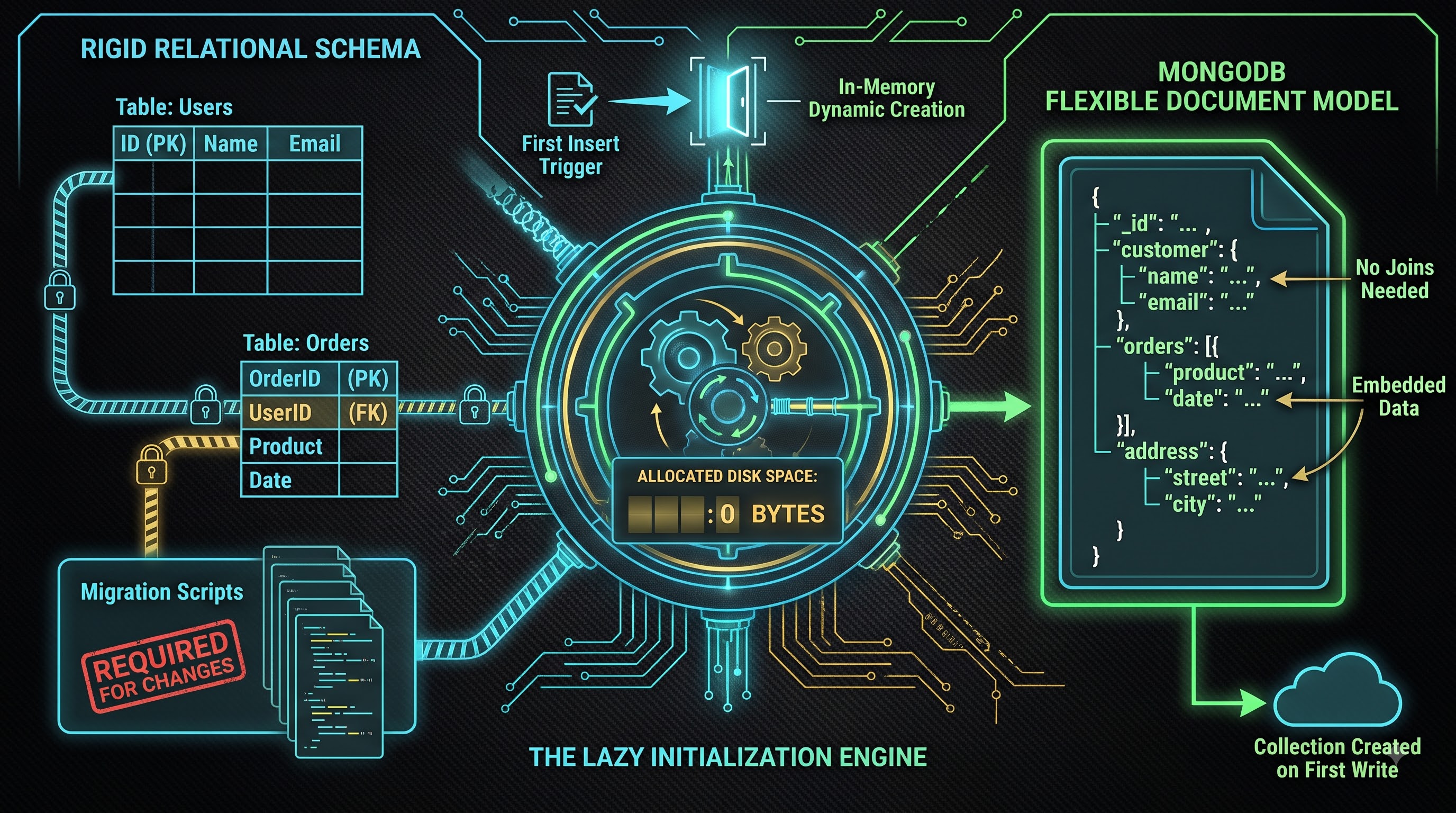
The relational database was widely used for many years and it is meant that the schemas were created before any insertion of data into the databases. It means that you should create the tables, define their names, find out the data types of the columns and set the connections between the records (primary and foreign keys). If you want to make an addition to the table (add one attribute), it would be necessary to modify the table using scripts.
Nevertheless, there are other principles of the work of the MongoDB since it uses the approach of the document model. Unlike the relational database, where the data is stored in the rows and columns of the table, the work of MongoDB takes place in the following order:
The Database – it is the top level of the structure that keeps all the information about the application and its security settings.
The Collection – it is the set of related documents that may be considered as the table in the relational database. Nevertheless, it may contain any strict schemas.
The Document – it is the document that is considered as the row of the table.
The fact that there is nesting of objects, arrays, and even lists makes it so that it will be very rare for you to have a case where you will need to separate related data due to normalization issues. Thus, the customer's document will contain all his information such as contact details, lists of addresses, preferences, etc., in one single document.
MongoDB Environment Setup
In order to set up your database, you will first need to decide where and how to run MongoDB database engine. There are currently two main approaches to setting up a database in MongoDB – cloud-based MongoDB service and local MongoDB deployment.
Cloud Service: MongoDB Atlas
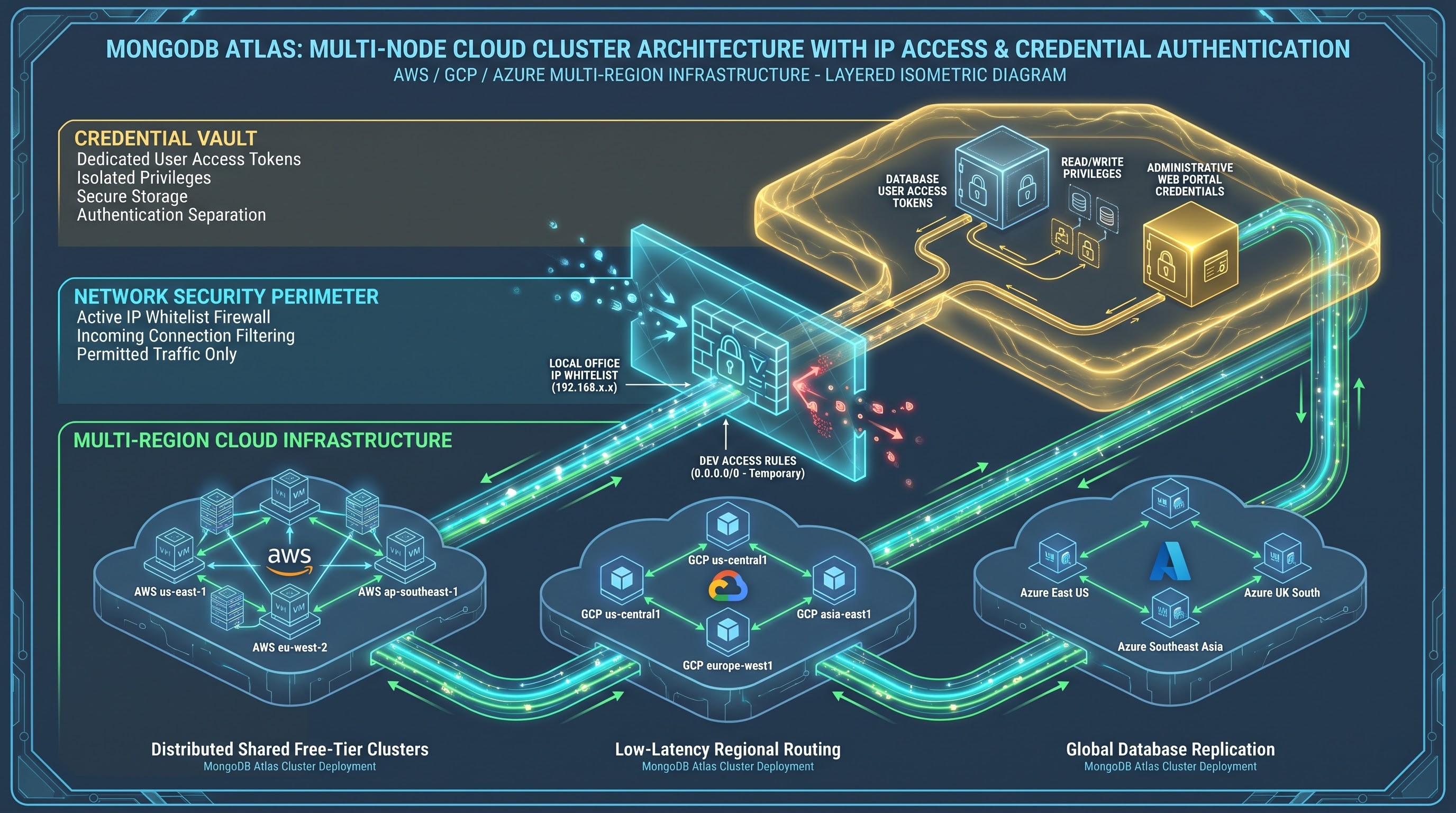
If you are a beginner in working with MongoDB or you want to have your database immediately set up, you should definitely consider using MongoDB Atlas. It is a cloud-based database solution that runs on Amazon Web Services, Google Cloud Platform, and Microsoft Azure servers.
Pros of MongoDB Atlas:
There are no mandatory needs of installing any software packages and configuring the OS services.
It provides a convenient web GUI that helps you to manage your databases using the web browser.
It provides a lifetime free plan that suits very well for experimentation, prototyping, and hobby development.
Onboarding also comes with security, patch management, network whitelisting, and credential management.
The Local Route: MongoDB Community Server
Then again there is another option of installing the free and open source MongoDB Community Server on your local machine that has either Windows, macOS, or Linux operating system.
If you take the local route, you have the following options:
Go offline without any need of internet connection.
Don’t worry about the third party cloud account setup and their credentials.
Learn more about the OS background services, logs, and network ports used by the database server.
No matter which way you are going to choose, the database creation process at its highest level in the terms of MongoDB architectural logic will not change.
Environment and Tools Creation
In order to make it more convenient for you to work with your database, you will certainly need some kind of an interface. Although professionals tend to use command-line interfaces, beginners will benefit from a GUI interface.
One of the best interfaces provided by the mentioned above environment is MongoDB Compass. It is a desktop application that allows you to connect to both your local and cloud MongoDBs. Using MongoDB Compass, you can explore your databases, collections, document structure, query builder, and performance analytics without any need to write a single command in the terminal.
Using Atlas, you don't need to use MongoDB Compass as you have a Data Explorer on your web portal.
Phase One: Account Creation and Cluster Creation (Atlas Workflow)
In case you decide at any point in time to use the cloud service provided by Atlas, then creating a cluster would be the most important thing to do. It is advisable for your databases not to run in one single server but rather in multiple servers.
Step One: Signing Up and Creating of Your Organization
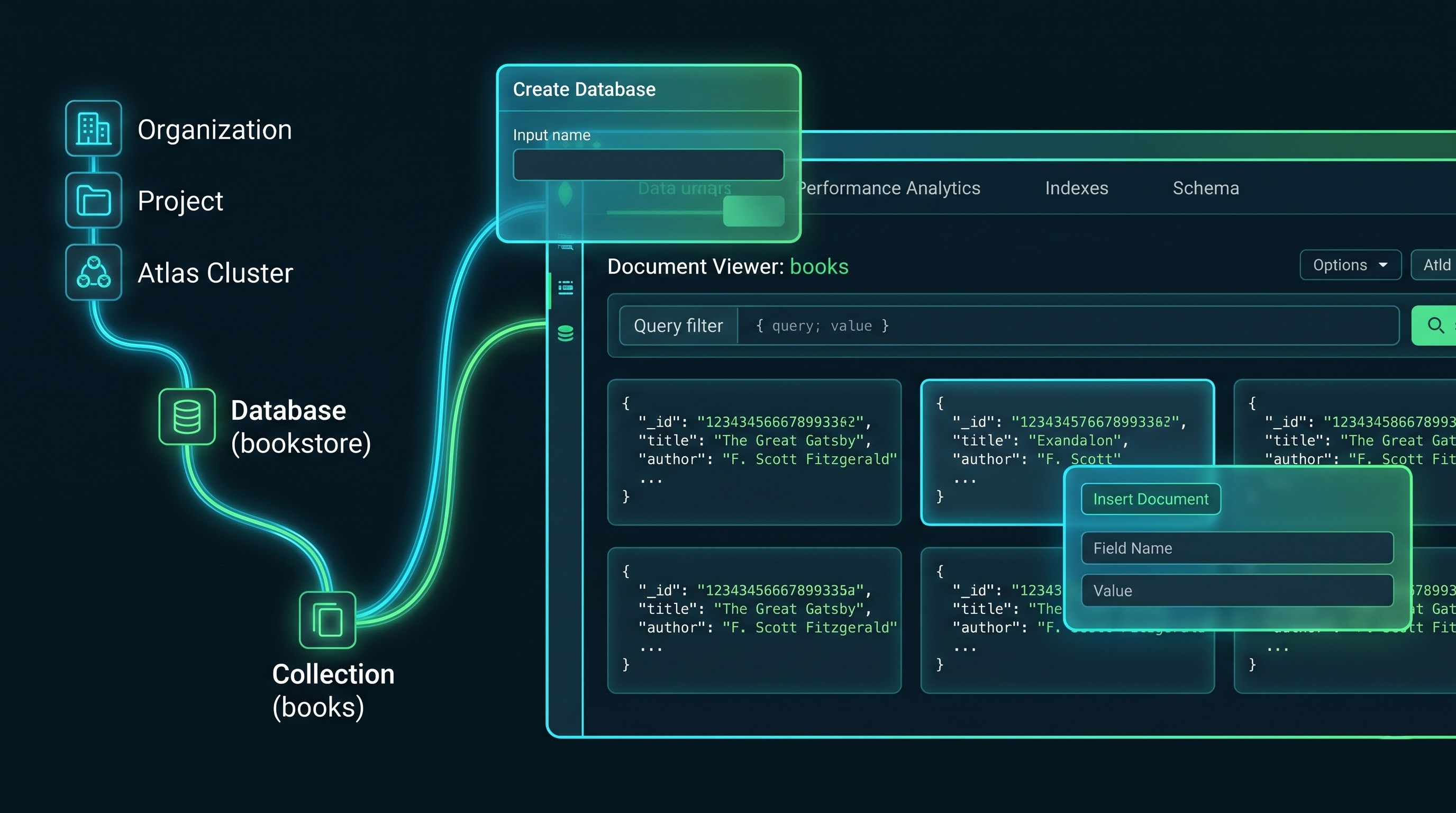
Just visit the Atlas website and sign up through it. Once you have logged into the website, you will discover that the onboarding wizard will ask you to input the name of your Organization and your Project. The Organization represents your working environment while the Project/ Application represents your application environment.
Step Two: Creating of Free Shared Cluster
After setting up your organization page, you will be able to create your database cluster. There are three types of clusters that you can create from Atlas, these are; dedicated, serverless, and shared. You will need to create a shared cluster in order to get a free cluster.
Choose cloud service provider and the region which is geographically close to you. Selection of the cluster which is geographically close to you will help you get low latency in handling your application and the database. You can select the name of the cluster by default or select the name of the cluster yourself and proceed to creating the cluster. It will take some time as your cloud service provider will provision the virtual machine, build the network layer, and set up the database engine.
Phase Two: Configuring Security and Connectivity
The modern databases have security already configured by default. The MongoDB will not allow any connection to itself until you decide what and from where will be connected to the database.
Step 1: Credentials Creation
You will need to create the credentials for yourself. Database credentials are different from the web portal credentials as the former deals with all the financial transactions while the latter is only used in the database engine.
In the Security section under the Database Access, create a new user. Give the user a proper name and password. Read and write rights are the privileges of the user. The user has rights to create a database as well as make changes in collection and documents without making any changes in cluster level.
Step 2: IP Whitelist and Network Access
There is a network firewall within the MongoDB that doesn’t give access to the database from any IP address which is not known.
In the Network Access section, create an IP Access Rule:
In case you are working on the production database, then you must allow your IP address. With this, the access to the database will only be restricted to your computer at your place/home or office.
In case you are accessing the database through mobile data and learning from various locations, then allow the open access rule. This means that access to the database will be available from any IP address. Although it is convenient to learn, keep in mind that the open access rule will be based only on username and password.
6. Phase Three: Nuance of Creation in MongoDB
Now that your database cluster has been established, it is time to start working on your database creation. However, there is one feature concerning MongoDB architecture that will seem unusual to the beginner – laziness of creation.
In general, in the case of relational database management system, the user makes explicit requests for creation of an empty database file on the disk, together with empty tables and their schema. Observing storage engine, one can see that the empty database file and empty tables have been created within the system objects.
However, in the case of MongoDB, no space will be allocated on the disk, and there will not be any entries in the catalog of the non-existent database or collection. In the case of requesting to use the non-existing database, MongoDB will happily agree to your request and create an object dynamically in the memory. The database and collection will appear in the storage only once the first document will be added to them.
Therefore, creation of the database in MongoDB cannot be separated from creation of the collection and document.
Phase Four: Steps for Visualization Creation via Web UI
Below are the steps of doing the process using Data Explorer in your cloud cluster through the web.
Step One: Accessing Database Explorer
In the dashboard of your cloud cluster, click on the tab labeled as Database. Then, you will be shown a button that is labeled as Browse Collections, which is located near your cluster. Once you click on the button, you will enter the data management interface.
Step Two: Starting the Process of Database Creation
If you are just beginning to use the cluster and no databases have been created in the cluster, you will see an empty state page wherein sample datasets as well as the tool for creating a database using the Create Database button can be seen.
If your cloud cluster has metadata, you will see a Create Database button that has a plus sign or Create Database written on it.
Step 3: The Database and its First Collection Names
Another pop-up window is opened and you have to enter two compulsory fields:
Database Name: You have to give a relevant and lower-case name to your application area. If you have plans to create a database for your online bookstore, you should call it “bookstore” or “retail system”. No spaces and special characters should appear here.
Collection Name: Since the MongoDB database needs bucket, you have to give a name to your first collection. Hence, taking into account the above-given example of the online bookstore, your collection can be named either “books” or “inventory”.
Besides, in addition to what was said above, there may be some optional boxes about the time-series data and/or clustering index. While creating your first database, you can just leave it aside. By clicking on the last button, you will close the pop-up window.
Step 4: Having a Look at Your Created Hierarchy
You will see an updated hierarchy on the left-hand side in a couple of seconds.
In less than a few seconds, you will realize that your left navigation panel has been altered. This is due to the fact that you have a new name of your database that has been inserted into your hierarchy structure above your collection. After selecting your collection, you will be able to get access to your document editor through which you will be able to insert your documents.
Phase Five: Inserting Your First Document
After setting up your hierarchy structure of the life cycle of your database, the next step would be to create the first record.
Step 1: Open the Document Editor
After opening your collection either using the browser or the compass, what you need to do next is to click on 'Insert Document'
Generally speaking, the graphical interface of the MongoDB allows for two ways of creating documents, namely, text-based and graphical approach. The field by field builder approach is relatively simple as it works just like an interactive form.
Step 2: Unique Identifier
In your insertion window, you will realize that there is a property with an underscore, i and d. This is the unique identifier of your document.
Every document in the collection should have a unique identifier. If you fail to provide unique identifier for your documents, the database will automatically generate Object Identifier that will be impossible to modify. It will be a unique identifier and contain timestamp, machine identifier, process counter and increasing number. It will guarantee uniqueness of all the documents in the collection and allow easy retrieval, indexing and update of the documents without interference from other documents.
Step 3: Creating field names and values
After you have provided the identifier field, start adding the fields. Click on the Add Field button to specify the properties of your document:
To add the title of the work, add the title field, choose the string data type in the drop-down menu and fill the value field with the name of the book.
To add the publication year of the book, add the published year field, choose the integer/number data type and fill the value field with the number.
To indicate that the object can be picked up immediately, add in stock field, choose the boolean data type and set the value to true.
To prove that the documents are structured by the means of nested structures, add a field called author, but set it to object data type, not string one. Other fields like first name and last name can be added within nested structure.
To prove the view of arrays, add a field called genres, set it to an array field type and add several categories to the array like fiction, mystery, or history.
Step 4: Completing the Record Insertion
Click the Insert button after entering all needed fields.
The window will close, and at the same time, a record will appear as a card within the collection viewer. Right at that very moment, the storage engine will commit the database, index the collection, save the record on the disk, and update cluster metrics. The first database in MongoDB is now created and filled with data.
Good Practices of Data Management in MongoDB
After creating the first database, you will have to follow some good practices of data management when creating collections.
Access patterns in application
While working with relational database management systems, schemas are designed based on conceptual relations between data. But while working with MongoDB, the collections are designed according to the access patterns of the data within the application.
One has to ask oneself the following question – "What kind of data does my user want to see while using my application?" For instance, in case there is an application, which displays some information related to the certain client and his account settings, account settings should be included in the same document along with the customer. Even though earlier one used to store different tables separately, now the performance of the application would be optimized.
Embedding versus referencing data
It is one of the key problems that one is going to face due to increasing volume of data. The problem here is if to embed or reference data from another collection.
Go for embedding when there is a one-to-one or one-to-few relationship between data and when the subsidiary data is not obvious by itself. For example, the items which can be included in a specific shopping cart or the chapters of a book should be embedded into the parent document.
Go for referencing when there is a one-to-many or many-to-many relationship between data and when the elements are created infinitely or the subsidiary data is generated separately in the system. For example, if millions of reviews have been generated for thousands of products and all of them are embedded in one document for each product, then finally you will reach a point where the total number of reviews exceeds the maximum size of documents which can be saved in MongoDB.
Consistency in Your Field Names
Relational databases strictly follow schema while MongoDB is quite flexible when it comes to developers. There may be mistakes in your field names due to misspellings or because of inconsistency in your field names in terms of capitalization. You should always have some conventions regarding your field names from the very start of your programming like camel case or snake case.
Conclusion
Your first experience working with a database in MongoDB gives an understanding of how modern and non-relational databases work. By allowing flexible documents and getting rid of table and foreign key limitations to replace them with more rational structures, MongoDB reflects how modern developers look at objects in memory.
Starting from automatic cloud deployment of your database using MongoDB Atlas to the installation and execution of a local database along with the help of a visualization tool such as Compass, all goes in accordance with the same sequence of steps, including setting up your environment, securing connections and users, finding places for your database and collections, and adding your first document. All the heavy lifting has already been done, and now you have learned all that is needed for designing your document oriented system. In case you wish to dig deeper and become an expert in production quality management, performance tuning, and schema design, taking a mongodb course from OnlineITGuru will help you get there.