
Power BI Gateway: How to Connect On-Premises Data to the Cloud
Last updated on Oct 21, 2026

Currently, the information available in enterprises is dispersed across different data sources. Whereas business executives and analysts use the cloud-based dashboards of business intelligence tools to make strategic decisions, the backend solutions – enterprise resource planning databases, legacy customer relations management solutions, financial journals and transactions, corporate internal file sharing – usually operate on-premises in privately-owned data centers.
As a result, the question arises how to connect those private data centers to the cloud services for the purposes of reporting, thus becoming one of the key challenges in designing the architecture of the business intelligence solutions. Companies need flexibility and collaboration of the cloud reporting software without compromising the security of their corporate networks from any internet-based risks and without incurring high costs for data transfers.
Microsoft finds the best possible solution to this problem in the form of On-Premises Data Gateway Solution. This allows integrating the Power BI cloud service with the data on the other side of the firewall and visualizing this data through reports. All important information related to On-Premises Data Gateway Solution is included in the guide, such as architecture, functions, configuration, optimization, and maintenance of the solution. In case you want to gain enterprise-level experience in such hybrid solutions, you need to sign up for the best power bi online training at OnlineITGuru.
What Is the Gateway and How It Works?
By definition, the Power BI Gateway is a Windows service installed on a separate internal server on the local network of an organization. The main function of the gateway is the creation of a safe connection. Instead of opening firewall ports for creating the connection from cloud services to an organization's network, the gateway uses only outbound connection. Thus, the gateway receives requests for queries, processes them by executing these queries to internal data sources, encrypts data sets obtained, and then returns the results to the cloud.
In order to install the gateway, organizations have to select between two types of deployment modes – Standard Mode and Personal Mode.
On-Premises Data Gateway (Standard Mode)
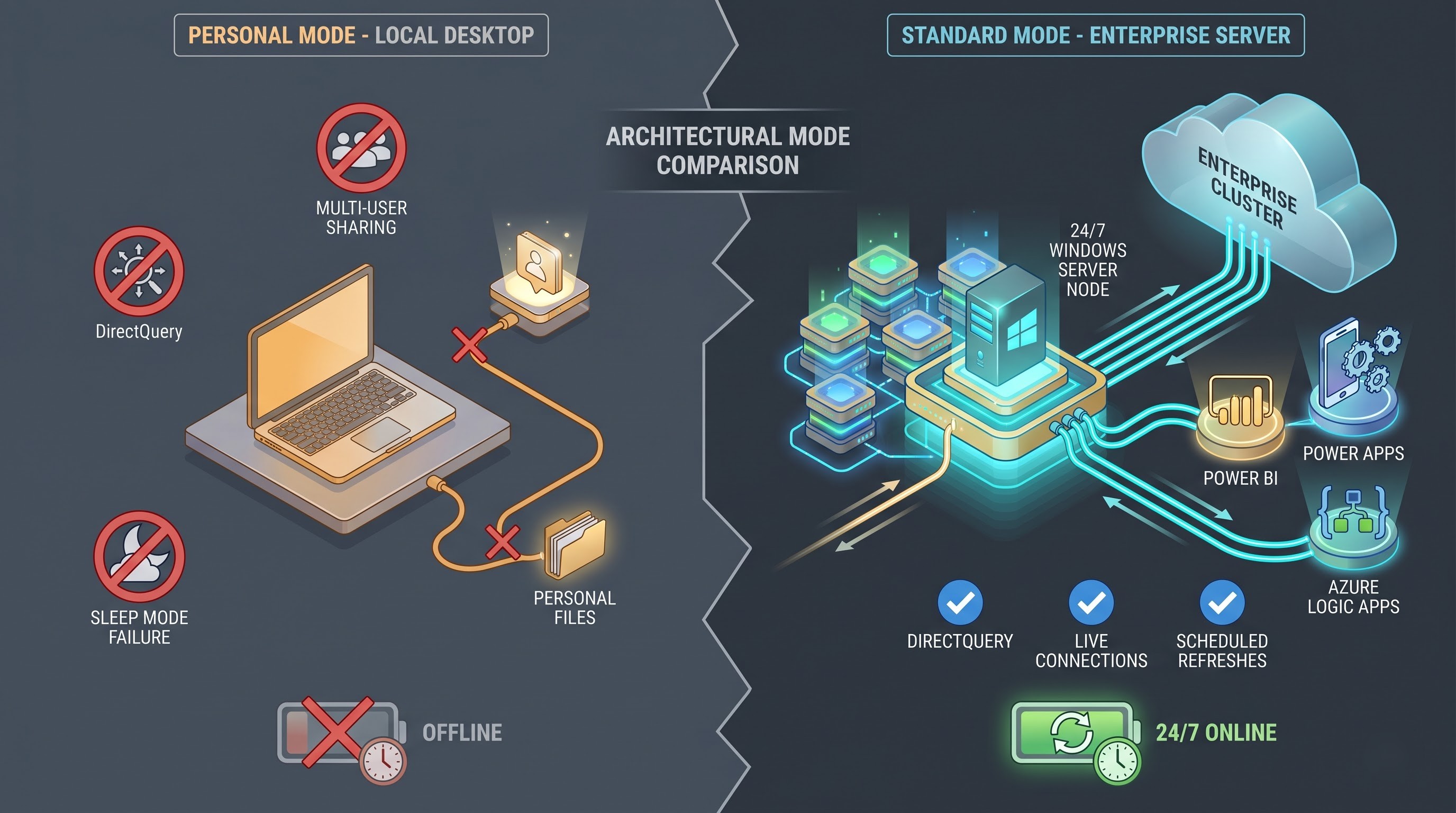
The Standard Mode, or enterprise gateway, is created to perform organizational tasks. This mode is deployed to a separate server and runs permanently. With the help of the Standard Mode, it is possible to create connections to multiple enterprise users using different cloud services such as Power BI, Power Apps, Power Automate, Azure Analysis Services, and Azure Logic Apps.
First of all, it must be noted that the Standard Mode can be applied to any connection types including Scheduled Import Refresh, DirectQuery, and Live Connections. Additionally, the Standard Mode can be used in high-availability clustering environment and offers the opportunity of the centralized management of access permissions. All cases of publishing, distributing and automating reports can be accomplished with the help of the Standard Mode.
On-Premises Data Gateway (Personal Mode)
Personal Mode is one of the On-Premises Data Gateway modes. The idea of this mode is to install it on individual desktop with the individual user's credentials.
Although the Personal Mode provides the opportunity of performing refresh operation for the imported datasets, there are numerous limitations which prevent its usage in enterprise-level environments since it is impossible to share Personal Mode with other users, it does not provide support for DirectQuery and Live Connections, it is unable to work in the high-availability clustering environment and it becomes disabled when the computer is put to sleep or is disconnected from the corporate network.
Architecture Mechanism: What Is Going on Inside the Gateway
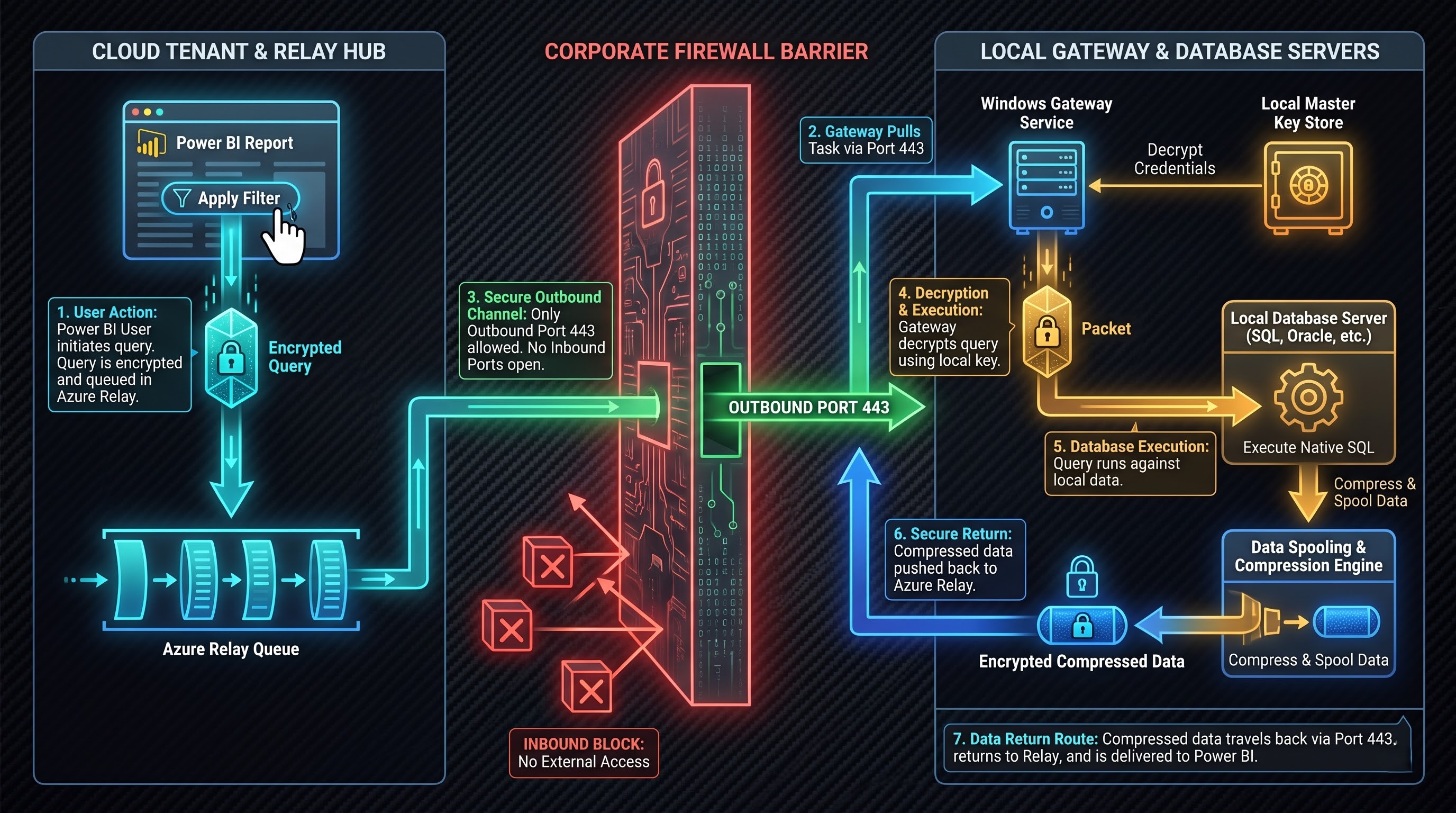
To build confidence and troubleshoot connectivity issues, data practitioners must be familiar with the internal workings of the gateway as concerns its request processing. All of the above-mentioned operations take place with the help of Microsoft Azure Relay that is an integral part of the Azure Service Bus architecture working as a rendezvous point for requests in cloud and on-premises environments.
Query Preparation in the Cloud Environment: A user interacts with the report in the cloud service of Power BI and uses visual filtering or schedule refreshing. Consequently, the Power BI cloud service constructs the optimized query and credentials for authentication at the target on-premises data source.
Queue at the Relay Point: The cloud service analyzes the query and sends the request to perform the query to Azure Relay placing the request in the queue based on the selected gateway.
Polling from the Outbound: In corporate network environment, the On-Premises Data Gateway service performs polling of Azure Relay via outbound secure connection using HTTPS protocol on port 443. Since all of the traffic goes inside, it easily passes through corporate firewalls without opening any inbound ports.
Acquisition of Task and Decryption: At the precise moment when the gateway gets to know about the request from the queue, it pulls out the task payload. Then, the gateway decrypts the credentials of the source, which were encrypted in the cloud by using the internal security keys.
Local Query Execution: Using the database drivers and the internal credentials, the gateway connects to the database, relational warehouse, or the file system. Then, the native query is executed at the destination side by the gateway.
Spooling and Compression of Data: The moment the request is fulfilled by the local data engine, the data set received from that request is sent to the gateway server. In case of import dataset, the intermediary data is stored in the temporary disk space, and this process is called spooling. After that, the gateway compresses and encrypts the data.
Secure Transfer of Data and Ingestion of the Cloud: Finally, the gateway sends the encrypted data set via Azure Relay network to Power BI backend service. Then, after decryption of the payload, the cloud service either refreshes the semantic model cache or builds the visualization.
During all the round trip operations, there would not be any external cloud entities entered into the system from outside the corporate firewall boundary.
Planning of Infrastructure and Pre-installation Requirements
Much thought needs to be put into planning for server sizing and network for enterprise-level deployment. In case one is not careful while designing for the gateway server, problems such as memory issues, poor reporting rendering and failure in data sets refresh would be encountered.
Hardware & Operating System Requirement
Gateway installation would be done only in 64 bit windows server operating environment. Installation should not be done on a machine having database engine, domain controller or any other enterprise application since the heavy compression and spooling performed by the gateway uses huge CPU and memory.
For the workload of small and medium enterprises, the required server would have minimum of 8 cores processor and 16 GB of memory whereas for the workload of millions of rows in data set refresh in high volume environment, server should have 16 cores and 32 GB to 64 GB of memory.
Also, SSD is a requirement for the OS drive and Spooling Directory. With slower mechanical disks, this may become a serious performance bottleneck in case of the necessity to load large volumes of data into the server.
Network location and connectivity
Physical and logical network topologies may affect the refresh time. The gateway server should be deployed in the same network as the company's data center and better if located in the same network subnet as its on-premises data sources. Even if the internet speed is good in the company's network, the latency between the gateway machine and the company's SQL/Oracle database may seriously impact the performance.
The server needs to have full unrestricted access to the Internet through port 443. The ability to establish connections to Microsoft Azure Service Bus servers, Microsoft Entra ID servers, and Power BI cloud service clusters (regionally) is a requirement. The Domain Name System should resolve Microsoft cloud services addresses without any redirection or interception.
Requirements and Dependencies
It is imperative to ensure that the gateway server contains all native drivers and database providers that may be required. In case where the selected databases include Oracle, SAP HANA, IBM DB2, MySQL and PostgreSQL databases, the appropriate 64-bit connectivity driver should be installed in the gateway server prior to data source registration.
Installation Process and Cloud Registration
To complete the process of installation for the gateway, it is important to have admin rights on both the host server and the Power BI tenant.
Software Installation Locally
Install the most recent version of On-Premises Data Gateway installer from the official Power BI cloud service website or Microsoft downloads. Connect to the Windows Server locally with admin rights and install the software.
On the installation screens, choose the standard mode installation. Agree with the terms of use of the software and give the path of the installation folder. It is recommended that you make sure that there is enough space in the selected partition to hold temporary files when refreshing data due to the size of the data. The wizard will configure the necessary Windows service, create internal network listeners, and verify local machine settings.
Power BI Cloud Tenant Registration
After the installation of the local files, you will be asked to register yourself. Provide the enterprise ID of Microsoft Entra ID that is able to manage gateways in your Power BI organization.
You will be asked to register a gateway in your computer. You should provide a unique name for your gateway, and this can be the name of your server or data center.
The role of the recovery key in ensuring the security is very critical. The recovery key would be used for the encryption of all credentials that are being stored for the data sources that are configured through the gateway. If you plan to migrate or restore the gateway installation, the use of the recovery key would be necessary. The recovery key needs to be saved in the enterprise password vault. If the recovery key is lost, then the migration or restoring of the gateway installation would not be possible without the credentials of the data sources.
Configuring Data Sources and Security
After registration, the gateway becomes visible in the Manage Connections and Gateways option in Power BI Service Admin portal. For configuring any data flows, you would require defining the data source connection and access policy.
Data Source Connection Definitions
Each on-premises database, folder path, or server from which your organization's Power BI Desktop model gets data requires creating the data source definitions in the cloud service gateway.
For defining the data source:
Select a registered gateway cluster.
Enter the name of your data source.
Enter the type of your data source (SQL Server, Teradata, File and etc.).
Enter the name of the server, instance name and database name exactly as it appears in the Power BI Desktop file. The exact name should be entered to make sure that the query will be sent to the correct gateway.
Authentication Type – Windows Authentication, Database Basic Authentication, OAuth and etc., credentials for service accounts.
Principle of Least Privilege
To ensure the highest level of security it is recommended to use service accounts rather than individual administrative accounts for connecting your data sources to the gateway. Service accounts should have access permissions only to the necessary tables, views and schemas.
Permission Allocation for Users
The architecture of the gateway is such that the privileges related to administration and those for creating datasets are divided separately. Using the Power BI administration console, the administrators can assign permissions to the users who will have permissions to access the configured data sources.
Permissions need to be assigned to the report authors so that they can use the data source definitions. The author will now be able to publish the reports from Power BI desktop to the cloud service without knowing anything about the database password.
Resilient Design – High Availability and Load Balancing
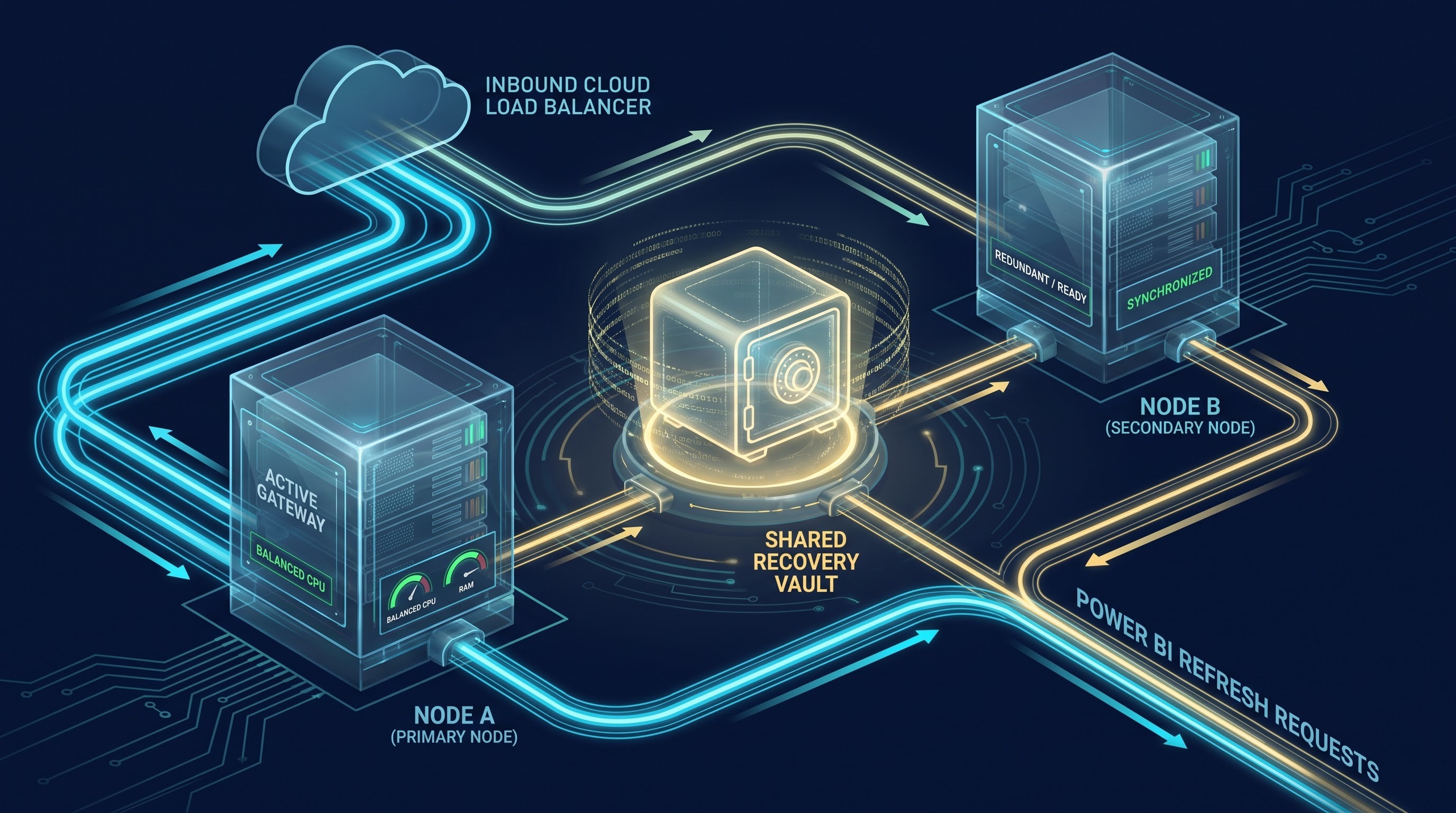
With the deployment of only one gateway server in the production environment, there will be single point of failure which is not acceptable. In case of host failure, freeze of the virtual machine and unexpected reboots due to operating system patching, all refresh operations will fail and all dashboards will disconnect. The enterprises must have gateway clusters.
Gateway Cluster Creation
Gateway cluster represents two or more gateways deployed on separate servers but sharing the same logical name in Power BI tenant.
To create gateway cluster you need to install On-Premises Data Gateway on another server, meeting the same hardware and network prerequisites. When registering gateway in the cloud, select “Add to gateway cluster” and choose your primary gateway from the drop-down list. Enter recovery key for the gateway.
All the data sources will be registered to use gateway and will form the cluster.
Traffic Distribution Configuration
The administrator may set up the traffic distribution mode through the Power BI Admin portal:
High Availability Failover: In this traffic distribution mode, all the traffic will be distributed between the primary gateway. In case primary gateway gets unavailable and breaks connection with the cloud, then all the traffic will be distributed by the cloud to the secondary gateway.
Load Balancing (Distributed Execution): In this mode, all the requests will be automatically distributed among all the servers in the cluster. Therefore, the server won’t be overloaded during the morning peak refresh time period.
To provide stable operation of the cluster, all nodes within the cluster must have the same release version of the software installed, have the same internal service accounts, and the same database client drivers installed.
Performance Tuning and Networking
The installation of the gateway does not guarantee its optimal performance. The inefficient design, excessive traffic in the network, and incorrect configuration of the threading parameters can negatively affect the speed of reporting.
Query Folding Optimization
For better performance of the gateway, the best method is the implementation of the technique called query folding. The query folding refers to the technique that allows Power Query to transform its processing queries to native SQL queries that are going to be executed on the server of the source database. Advanced query transformations and performance of the mashup engine can be found in the best online power bi course by OnlineITGuru.
With the correct implementation of the query folding function, the on-premises database executes computations and sends only the results to the gateway. If there is incorrect implementation of the query folding (as a result of premature use of custom functions), the database sends the raw table containing millions of records to the gateway.
Spooling and Disk Allocation Management
While the batch refresh procedure takes place, the stream of the data from the local disk will be temporarily stored and additionally compressed and forwarded. In case there is not enough free space available for the system drive, the batch refresh procedure will be halted due to the unavailability of the allocation of a new disk.
It is essential to know that the temporary storage disk is under management of the administrators and can be configured through altering the spooling directory in the gateway configuration files to a certain fast SSD with plenty of free space.
Concurrency Limit Management
By default, the concurrency limit is configured in such a way that the gateway is capable of determining the number of mashups that can operate simultaneously depending on the number of CPU cores. In case of the direct query with many users, the system gets overloaded.
The number of concurrent queries can be configured explicitly in the gateway configuration files.
Governance, Monitoring and Management of the Enterprise
For deployment of the gateway solution, there should be a continuous governance for the purpose of ensuring the security and performance.
Scheduled Updates
The On-Premises Data Gateway is updated around once a month by Microsoft with the aim of improving security, performance and compatibility according to the modifications in the Power BI engine.
To ensure proper functionality, it is advisable to schedule updates for the gateway solution at least once in every three to six months. When it comes to the updates of cluster configuration, each node can be updated without any effect on the reports users, hence zero downtime.
Performance Counters and Diagnostics Logging
In regard to the gateway solution, diagnostics logging is possible via the administrative console. In case of slow refreshes or timeout, further diagnostics can be done through the logging of execution times of the queries, data transfer time and memory usage.
Furthermore, this gate provides the ability to track Windows Performance Monitor Counters. Having this information available in the current monitoring system makes it possible to track CPU usage, memory usage, connections in pools, and query queues. Automated alarms can be set up for alerting system administrators prior to any limitation of resources causing an outage.
Disaster Recovery Planning
Disaster recovery planning must include documentation related to the configuration of the network and third-party drivers as well as the list of service accounts being run on all gateway servers.
The most important of all, the recovery key that was created during installation has to be saved and checked. In the event of total hardware failure, an administrator would have to install Windows Server anew, install the gateway, start the recovery process and use the recovery key to restore cloud services without interrupting reports, dashboards and data sets.
The integration of on-premises data into the cloud-based platform of Power BI does not imply that there is any compromise of the network environment of the corporation or any rushed migration of its operations into the cloud. With the use of the On-Premises Data Gateway, organizations can enjoy all the benefits associated with advanced cloud-based business intelligence and analysis without compromising the safety of their critical data within the organization’s network environment.
With the assistance of effective planning and design of server capacity, formation of multi-node clusters, security, and efficient queries, it is possible for IT managers to construct a bridge between their on-premises data and cloud computing. In case you are searching for comprehensive information regarding modeling, management, and hybrid cloud integration for your team, then opting for the most best online power bi training program at OnlineITGuru is recommended.