
Power BI Report Builder: Creating Paginated Reports
Last updated on Oct 30, 2026

Modern analytics of enterprises is represented by the variety of requirements for data representation according to the specific scenario of application and audience. Even though visual dashboards and canvases are excellent tools for investigations and analysis of trends and offer flexible filtering abilities, there are many situations when business needs a strictly formatted and printed report. For financial statements, invoices, regulatory reports, inventory lists, and transcripts one cannot afford to use web scrolling frames and grid containers with unpredictable results. Pixel-perfect formatting is needed. And here another essential tool for modern data analyst appears – Power BI Report Builder and paginated reports.
That is exactly why the use of Power BI Report Builder and Paginated Reports becomes very important for the data analysts of today’s time. For those analysts who are ready to learn everything from the industry experts through an online course, the best way to do that would be choosing a power bi online training.
Philosophical Concepts of Paginated Reports
The concept of paginated reports is built on the fundamental property of such reports – accurate page formatting. In comparison with usual Power BI desktop reports that were developed for the presentation in the screen and for resizing within the browser window, paginated reports present all rows of data regardless of their number. If, for example, a dataset has one hundred thousand rows of data, paginated report will have dozens or even hundreds of pages full with data.
The authoring tool that is specially created for Report Definition Language file creation is called the Power BI Report Builder. This authoring tool works independently of the regular Power BI Desktop application and provides all necessary capabilities for creating pages, margins, headers, footers, and data regions. The first thing that comes into the mind of any data analyst before using the tool is when it is better to use paginated reports rather than regular ones. In case if you need to distribute your document or to archive it, make a PDF file or perform any other action with your documentation, depending on your corporate branding and page budget restrictions, then you need Report Builder.
Setting Up the Basis: Architecture and Data Connectivity
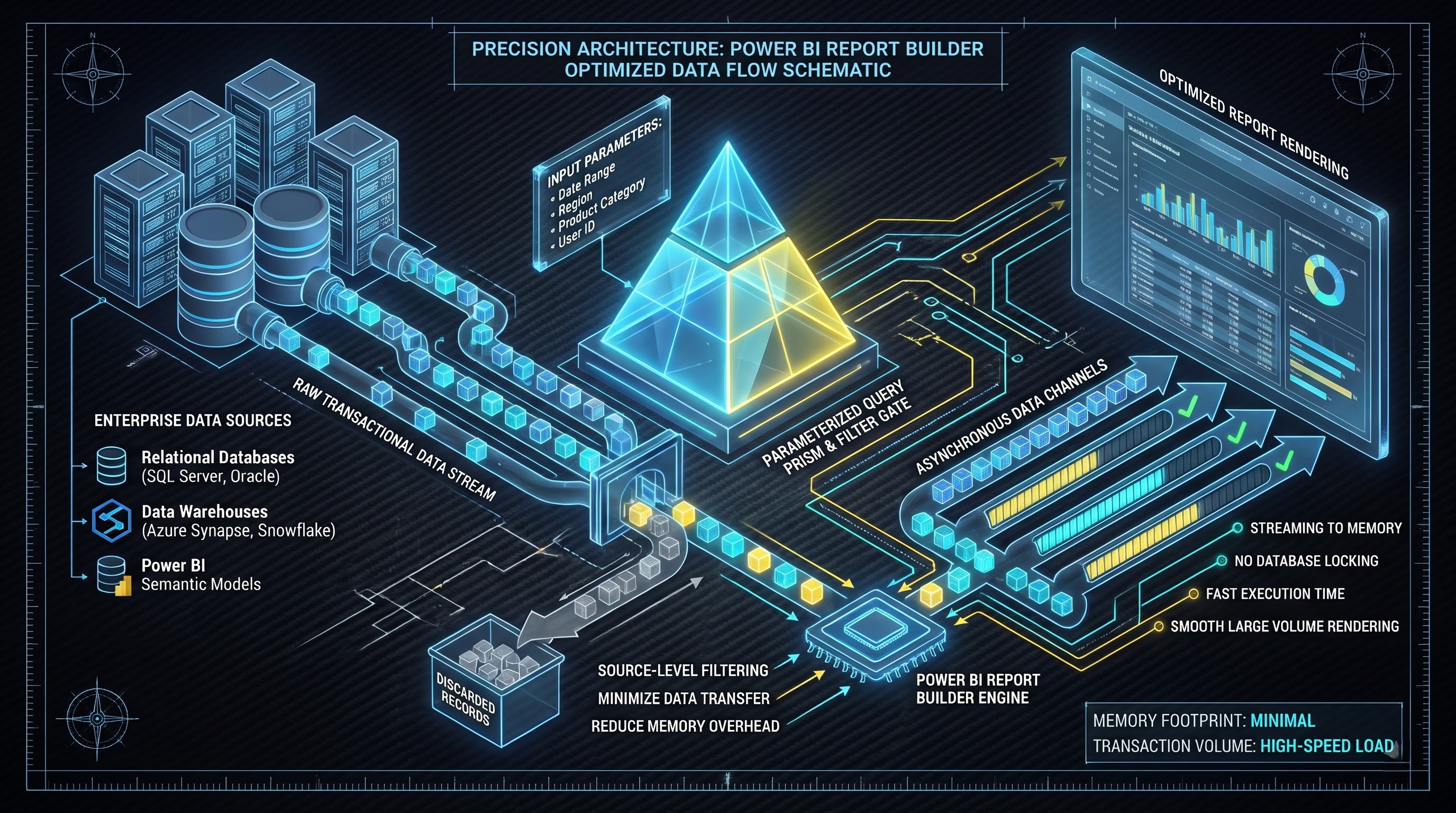
To create any paginated report, you need to connect to a reliable data source at the very beginning. There are many types of enterprise data connections in the Power BI Report Builder, for example, relational databases and data warehouses, enterprise semantic models in the Power BI service, etc.
The use of Power BI's semantic models as a source of data for paginated reports represents good architecture. The direct utilization of the semantic model will give the opportunity to the authors of reports to use the pre-calculated measures, hierarchies, and business logic without redoing the whole data preparation process. On the other hand, authors can utilize the native queries, stored procedures, or even multidimensional analysis services.
Having established a connection with the data source, authors build datasets using query languages depending on the data source. At this point, there is an option to use parameterized queries in order to skip unnecessary data at the very beginning, right from the source, in order not to pull a lot of unnecessary data during the process of rendering. Parameterization is the key feature of the paginated reports which gives the possibility to the end users to set some criteria like the period of time, region, or customer ID before report rendering. In this case, generation times will remain optimal and users won't get unnecessary data.
Detailed Information about Advanced Data Modeling and Query Optimization
Apart from connectivity, building an efficient paginated report requires information on how the query behaves at the point when there is heavy workload. Given the purpose of paginated reports where they are intended to handle large transaction volumes like multiyear general ledgers and payroll log throughout the enterprise, any inefficient queries will result in poor performance in terms of rendering and inefficient use of cloud capacity.
The queries should be designed in such a way to move as little data as possible and utilize indexing in the source databases. In case of connectivity to Power BI semantic models using XMLA endpoints, DAX queries optimized for speed of data fetching will ensure that data transfers smoothly. Using the query parameters correctly will ensure that the engine moves only required rows to the memory. Proper parameter usage as a filter in the native database is very important for high performance.
Another architectural factor to consider is the management of asynchronous data loading and timeout of executions. Large paginated reports that need to be automatically distributed will normally be executed during off-peak hours. To ensure that locking issues are avoided in transactional databases, the queries should be appropriately indexed, cached, and designed.
Creating Canvas and Layout Regions
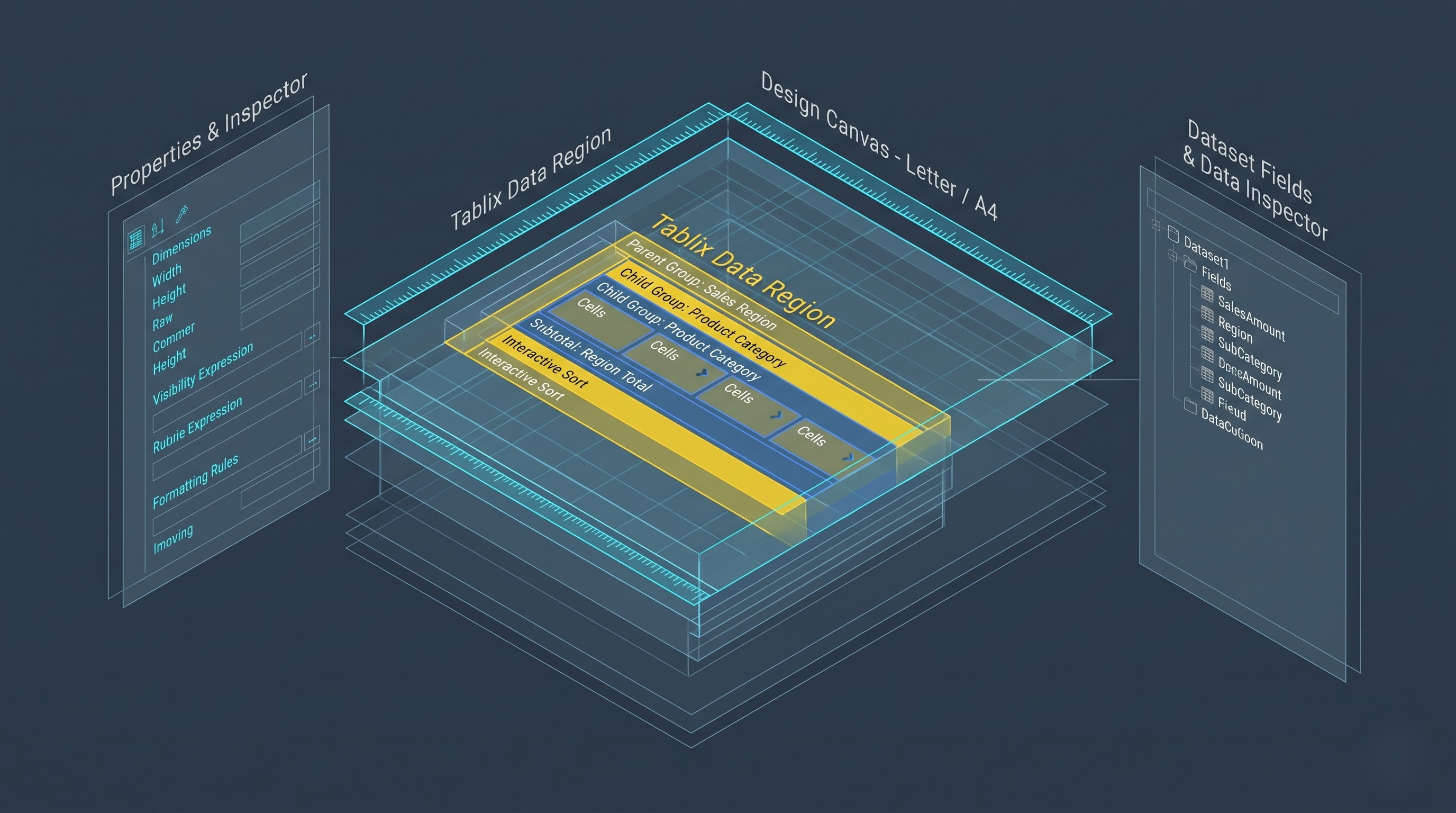
The design interface of Power BI Report Builder consists of a blank canvas with rulers, properties window, and data trees surrounding it. Layout creation consists of white space, grid placement, and typography considerations. The size of the page (Letter, A4) becomes the restriction of the width of the canvas to which it is allowed to stretch. If elements included in the report exceed the size of the page, elements would either get cropped or spilt into unwanted vertical pages during the export.
Canvas has regions of data, which become containers for placement of the data. The most used type of the data regions during the creation of report design is Tablix. It is a flexible data region that works either as table, as matrix or even nested list. Table provides information about the data arranged in rows. Matrix is similar to pivot table in that it categorizes the data both horizontally and vertically. There are possibilities to add grouping, totals and stylings. Recommended practice suggests that the author arranges proper hierarchy of fonts, uses sans serif fonts and soft horizontal lines rather than grids.
In addition to table regions, Report Builder also offers custom graphical objects, such as gauges, indicators, and images. Usage of those enables report authors to incorporate company logos, visual statuses, and KPIs alongside transactional tables. The properties pane of all the objects of the report gives report authors the ability to define positions and dimensions of graphical objects, as well as to determine when they should become visible.
Customizing Tablix Region and Hierarchical Grouping
The Tablix data region is the object that a report author must master in order to create effective reports using Report Builder. Incorrect creation of the Tablix results in layout errors and even in redundant information or performance decrease while rendering the report. The knowledge of row and column grouping in Tablix region makes it possible to generate hierarchies out of simple tabular data.
When report authors have to create more sophisticated reports, such as departmental expense summaries at various levels of detail, then they can use the parent-child grouping technique. This makes it possible to group by division, sub-division, and cost centers. Proper usage of static and dynamic rows in the Tablix region helps to place subtotals and grand totals correctly.
Additionally, it supports the dynamic sorting of the data due to its interaction with the Tablix control. The capability for the users to set up the sorting expression on the header cell makes it possible for the users to determine whether the metrics such as sales, quantities of units and even employee IDs should appear in an ascending or descending order.
Pagination Control and Grouping
The pagination of the information serves as the fundamental idea behind the paginated reporting. In case of lengthy reports, it is important for the users to have references at each page in order to understand the information they are working with. Report Builder provides controls which will help you to ensure that the headers of your tables will be automatically printed on each new page and thus will save the users from having to flip back to the first page to figure out what columns are about.
Moreover, one may explicitly insert a page break between group items. For example, while designing a report on regional sales, one may add a page break between regions so that each manager will have his/her own page from the document devoted to the regional sales. This kind of page breaks control will help not to have an orphan row, which means a single-line text that may occur as an isolated text at the beginning or end of the page.
The header and footer sections of the page are crucial in terms of pages control. It is possible to put there some built-in dynamic fields that will automatically provide page numbers in any format along with the date of generation and notice of confidentiality. In this way, regardless of the amount of records that query returns, the final document will be audited and labeled properly.
Managing Complex Document Design and Subreports
While designing reports in the enterprise environment, one has to implement a modular document design, meaning that different report elements must be integrated into one master report. It is possible to implement this function with the use of subreports and rectangles in Power BI Report Builder.
Subreport is a report definition file that is embedded into the main report definition. With respect to the executive compensation, for instance, there will be a main report consisting of a cover page and a summary ledger showing the total compensation, as well as dynamic subreports that show additional information about performance bonuses, reimbursement, and withholding taxes for each person in the company. Parameters can be passed between the main and the subreports to achieve maximum flexibility and modularity of the reporting solution.
Optimization is necessary, however, in using subreports since each subreport runs a separate query for itself depending on how many times this subreport is displayed in the main report, and, consequently, improperly designed subreports can experience some performance issues. It is important for the report designers to pay attention not only to the maintainability of subreports but also to the influence they exert on the performance of the entire reporting solution; rectangle controls and inline grouping can do the same job without querying the database.
Use of Expressions and Conditional Formatting
There exists a flexible language that enables the user to create formulas and conditions for any report object in Power BI Report Builder. Expressions use simple syntax in evaluating the data fields dynamically to make complex customizations well beyond layout options of the report objects.
Conditional formatting is one of the common uses of expressions in paginated reports. The user can make changes to such things as the color of the background, font weight, or the style according to the value of the data field. For instance, a low inventory will be highlighted using a particular warning color that will catch the attention of the operations department. Besides, expressions can be used in doing summations, calculating the percentages of total amounts, handling dates and concatenating text while building the report.
Parameters are critical in creating expressions. Multivalued parameters can be included in expressions to change filter condition or display filter information in the header of the report.
Mentoring is essential when developing the formula, formatting, and configuring the filters, besides having enough time. Power bi classes online provides opportunities for developers to familiarize themselves with implementing business logic in a very short period of time.
Dynamic Navigation Tools with Interactive Bookmarks
Although they lie outside static formatting, paginated reports also include dynamic navigation tools that help users to handle such reports more efficiently. Document Map and interactive bookmarks allow going directly to any page within hundreds of pages of a report without manual scrolling.
Document Map is a form of side table of contents which is generated automatically based on groups or expressions defined by a user. As soon as an executive begins to work with the financial review of a company, he or she just needs to click on the name of the division and go directly to this chapter. Besides, there are interactive links which can help the user to go from one document to another, launch web application, or go to a second-level report.
All these interactive elements should be planned properly through naming conventions and scope definitions in the property pane.
Publishing, Security, and Distribution Workflow
Having created the design of the paginated report, conducted a local preview print test, and confirmed the layout, it becomes possible to move to the next stage of the publication and distribution workflow. Paginated reports are saved as definition files and then are directly published in the cloud-based analytics service workspace.
In order to access and view paginated reports in the cloud-based environment, one needs to have sufficient licensing capacity that comes along with premium user or organizational capacity node licensing. In case of usage in the cloud, paginated reports make use of security models corresponding to the row-level security definitions on the basis of semantic models and data sources, which provides for the accessibility of data in the reports for certain users only.
Together with the manual access to paginated reports, there is an option to distribute the latter through creation of automatic email subscriptions for sending snapshots of the paginated reports in the format desired (PDF, Excel, Word, or CSV) to the inbox of stakeholders. Thus, paginated reports become business processes.
Enterprise Administration, Governance and Lifecycle Management
In connection with the growing number of uses of paginated reports in an organization, it becomes crucially important to create proper governance and lifecycle management processes. Uncontrolled development of the report, ineffective execution of queries and scheduling of subscriptions might lead to excessive loading of the capacity nodes and databases.
There is a need for creating a permission management process to make sure that only certain people have access to the publication of Report Definition Language files in a production environment. To achieve this aim, Git tool available in Power BI workspace can be employed for reports' design versioning, shared data source and query definition. In such a way, it will become possible to track all changes and roll back the design of the report to the previous version in case of issues with rendering.
Furthermore, performance indicators of workspaces might be evaluated via the administration portal analytics.
Conclusion
Power BI Report Builder is crucial in filling the gap between the data and the documentation of the professional level in the organization. This is achieved by its emphasis on the control of layout, non-truncated data representation, and different forms of exporting the report. The understanding of the main concepts needed to design Power BI Reports such as data connectivity, tablix, pages, sub-reports, expressions, and enterprise management helps enterprises develop their financial reports and executive summaries effectively.
Whether you have to make reports or materialize processes with multiple pages, it will undoubtedly be advantageous for you to gain expertise in the Power BI Report Builder. The individuals who are keen on learning the right way to report and improve themselves can take up the unique power bi course online offered by OnlineITGuru.