
Integrating ServiceNow with Teams streamlines Enterprise Workflows and Approvals
Last updated on Aug 1, 2026
In current business IT and service management, a big cause of unproductiveness is context switching. Whenever staff members are required to exit their primary workspace—Microsoft Teams—to log on to a different online portal, lookup items in a catalog, create a ticket, track an incident, or favorably respond to a sign-off request, friction is aggravated and the organization suffers from the back and forth. The process of constantly moving from one application to another disrupts focus, decreases portal usage, increases dependence on uncontrolled communications, and prolongs incident resolution.
The incorporation of ServiceNow natively into Microsoft Teams closes the behavioral gap. The service management is not acknowledged as a separate entity. The business offers a modern approach to implementing support service into Microsoft Teams. Due to the implementation of chatbots and real-time notifications and messages in MS Teams, the company changes its approach to ESM.
In order to reach comprehensive and effective integration, enterprise architects and operators need a multi-level technology framework:
Identity Federation and Security: Implementing SSO and aligning user identities of Azure Active Directory with ServiceNow shall help achieve safe contextual access with no need for repeated authentication.
Conversational AI and Now Assist: The ServiceNow Virtual Agent’s capability of generative AI allows users to get assistance for addressing issues, get access to knowledge base, and place service requests via chat from Teams chat.
Real-Time Adaptive Cards: IntegrationHub and webhooks help provide managers with interactive approval cards that can be signed with one click creating immediate decision execution in the system as well as real-time ticket status updates.
Contextual Incident Management: The presence of message extensions enables IT personnel to transform chat conversations into incidents by means of automated workflows that create dedicated Teams channels for collaboration in case of significant incidents.
In summary, integrating ServiceNow with Microsoft Teams removes the issue of switching contexts, results in lower MTTR (Mean Time to Resolution), and increases employee satisfaction better within IT as well as HR and throughout enterprise operations. The subsequent section of the guide discusses all necessary design and architecture, security models, configuration details, and successful practices that help integrate effectively.
In order to effectively execute a multi-tiered technology framework, many organizations need servicenow training for their teams to master identity federation concept, API integration and workflow automation.
Architectural Approach and Security Basis
Enterprise architects should begin by figuring out a fast and reliable connection between the ServiceNow instance and the Microsoft Azure / Microsoft 365 environment before connecting different components.
Important elements of architecture
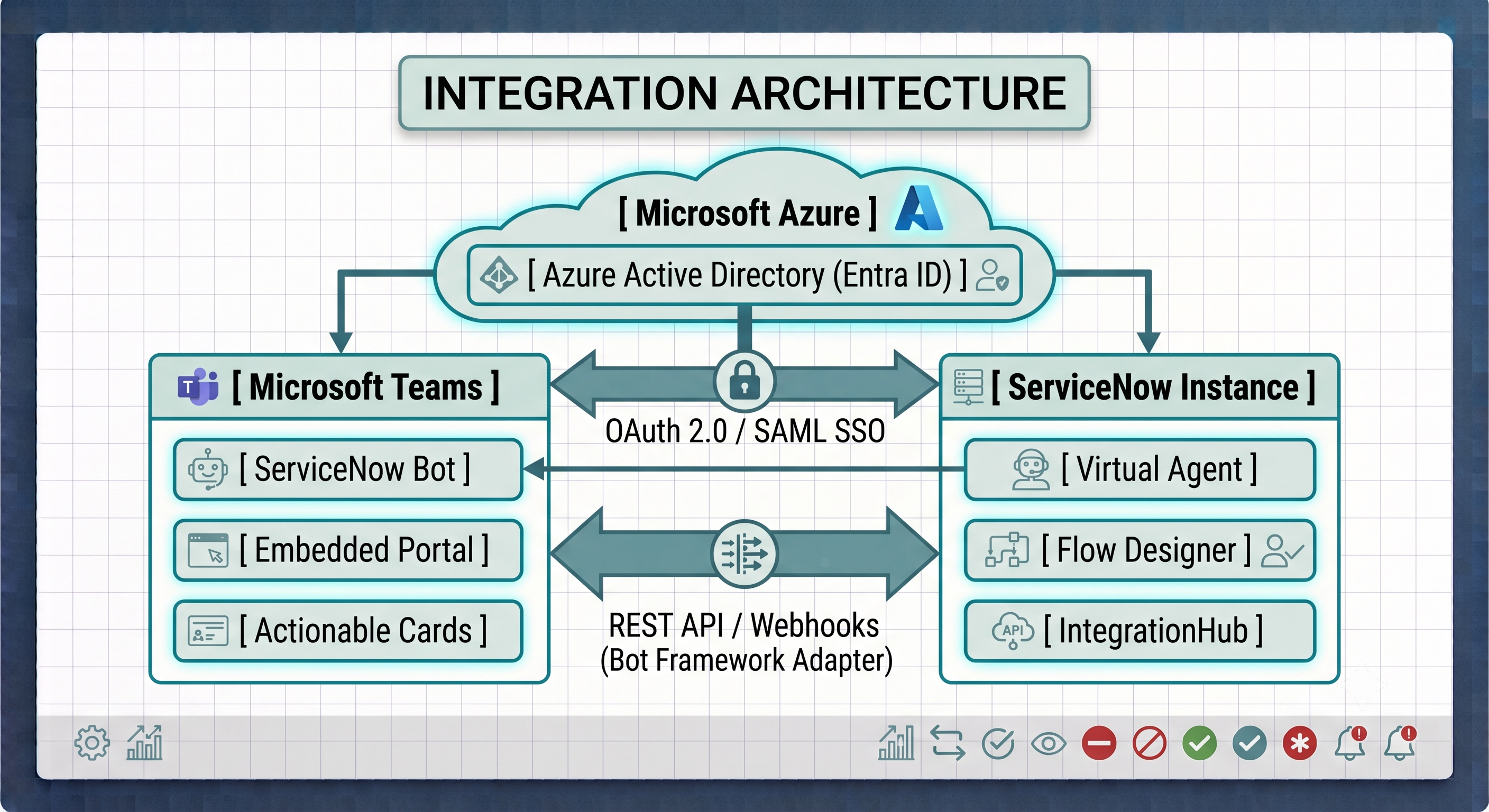
ServiceNow for Teams Application (Store App) This is the app that you install from the Microsoft Teams Admin Center and contains the personal bot workspace, tab integrations, and messaging extensions.
Single Sign-On (SSO) with Azure Active Directory (Entra ID): Enables easy sync of user identity in Microsoft 365 (userPrincipalName) with user profile in ServiceNow (sys_user.email or sys_user.user_name).
Conversational Integration Plugin (sn_ms_teams) Enables two-way communication using Microsoft Bot Framework endpoints to convert ServiceNow Virtual Agent topics to Teams native messaging
IntegrationHub & Webhooks: Send notifications, Adaptive Cards and real-time status update delivery.
Conversational Self-Service with Virtual Agent & Now Assist
Lessons on configuring Virtual Agent Designer, NLU intent mapping and tuning Now Assist generative AI topics, do form part of good servicenow online training.
Features in Teams
NLU: By typing a simple question like "My laptop screen is flickering" or "How do I request a mobile phone", the user is not required to type keywords to get replies.
Generative Search Summarization: The Now Assist application returns an answer to a user's question straight from the Knowledge Base articles so that it is viewed without opening a browser tab.
Effective Live Agent Transfer: If the conversation with an AI bot requires human support, all context of the previous conversation, along with text and user information, is passed to the customer service agent in Agent Workspace or Service Operations Workspace.
How to Create Tickets in Teams
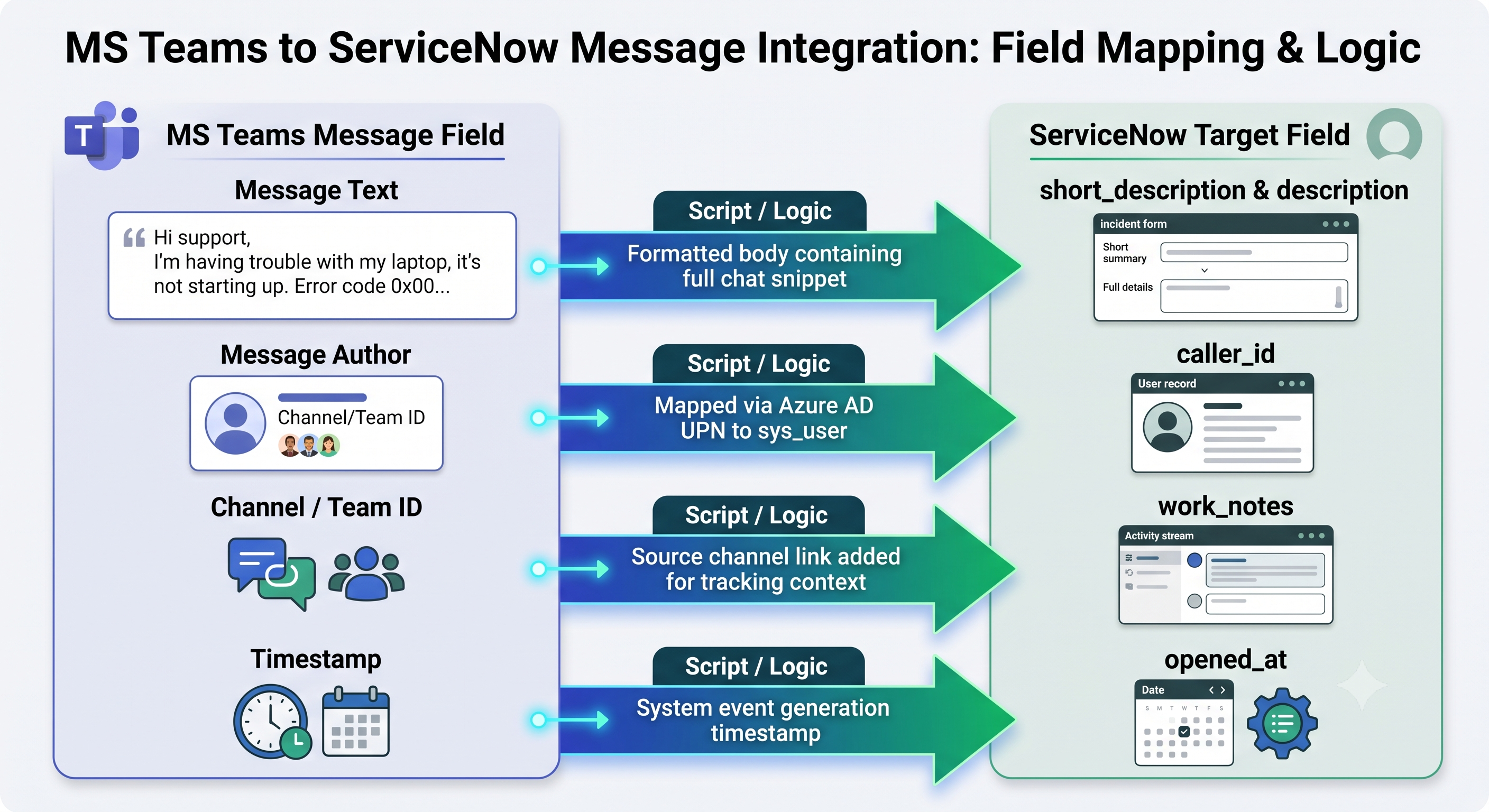
Submitting Incidents and Service Requests directly from Microsoft Teams removes the pain of creating an unofficial support infrastructure or “shadow IT” in personal chats.
Option 1: Chat Based Catalogue Item Submission
Virtual Agent allows users to create catalogue items through the chat experience:
For example, a user may say: “I need to get into the Financial Analytics folder.”
The Virtual Agent identifies the catalogue item type and builds a dynamic Adaptive Card form in Teams.
The user will select the required level of access and provide the justification prior to submitting the form.
This creates a sc_req_item (Requested Item) in ServiceNow that starts the appropriate Flow Designer workflow.
Option 2: Converting Messages to Tickets
A great feature for IT service desk or team leads is the ability to convert any Microsoft Teams chat message into an Incident or HR Case.
For example, a user posts about an outage in a public Teams channel.
How it works: The authorised user clicks the three dots icon on the right side of the message and selects Create Incident from the More actions menu.
Instant Actionable Notifications & Approval
One of the strongest points of enterprise profitability for this integration is in decreasing turnaround time for approvals. Get Actionable Notifications in Teams chats, not just email notifications that might take longer to get to you, with ServiceNow’s Microsoft Adaptive Cards.
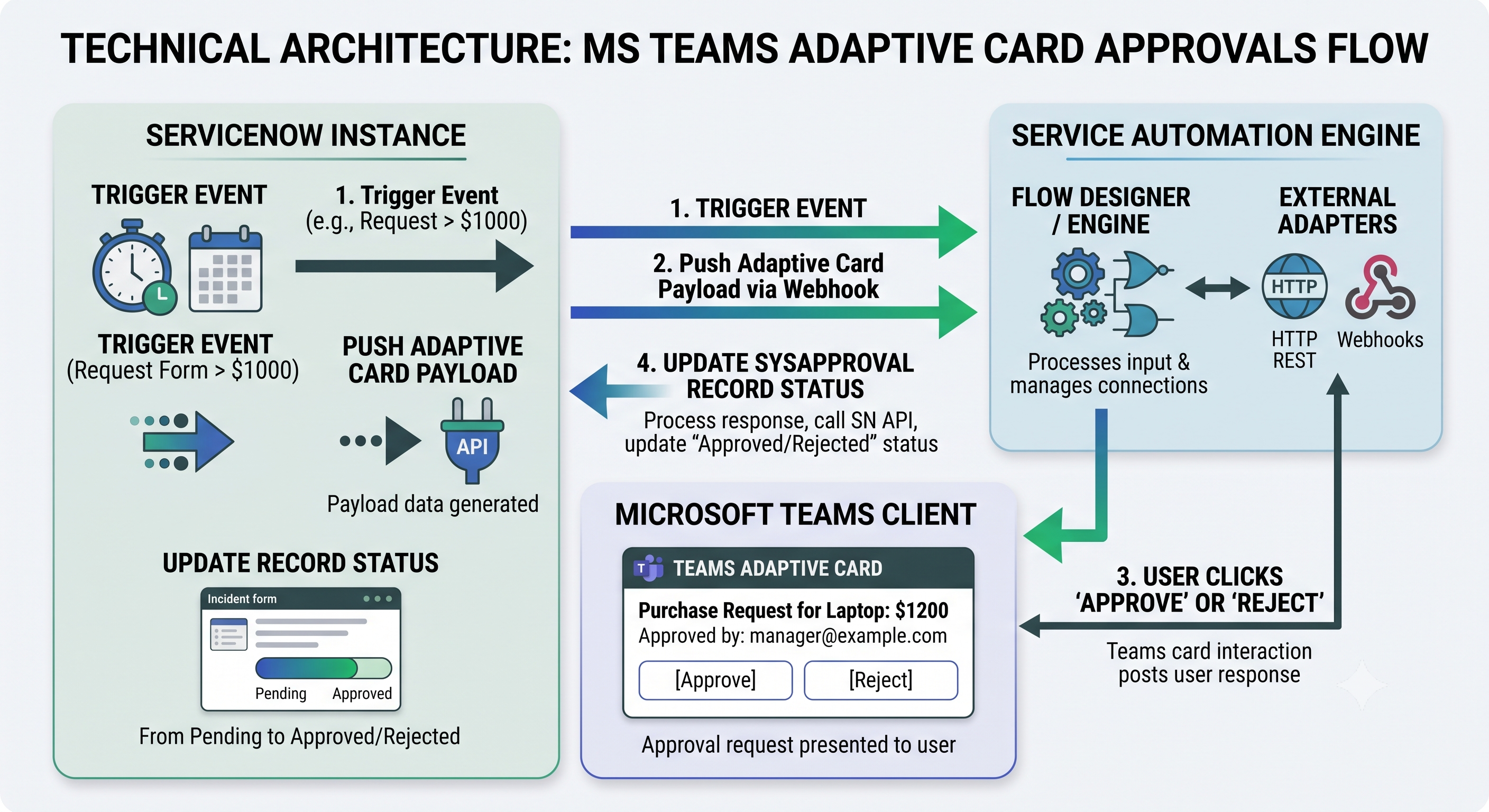
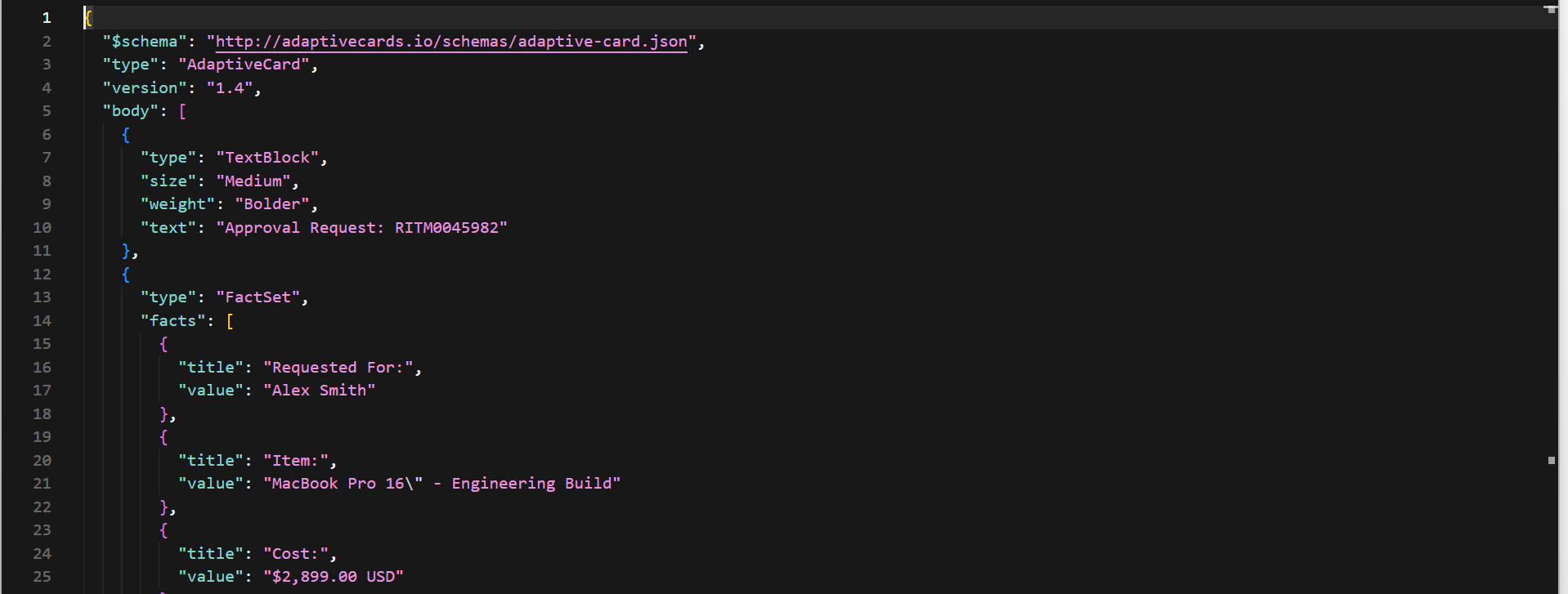
Sample Payload Structure for Adaptive Card Approval
When a record (sysapproval_approver) is created for approval, ServiceNow prepares a JSON payload based on the schema of an Adaptive Card according to Microsoft.
How to Process the Response in ServiceNow
When the approver clicks Approve or Reject in Microsoft Teams:
The Microsoft Bot Framework sends the data back to the ServiceNow REST endpoint as an HTTP Post (/api/sn_ms_teams/v1/message).
ServiceNow verifies the payload authorisation with the Azure App credentials.
Finally the application analyses the input comments and changes the state of the relevant sysapproval_approver record to state=approved or state=rejected.
This prevents double submissions because the card in Microsoft Teams will automatically update to show the read-only stage that the action (“Approved on Aug 1, 2026 at 09:15 AM”) has been completed.
Major Incident Management and Collaboration Hub
In cases of emergency (Priority 1 / Priority 2 incidents), timely collaboration is incredibly important. The service allows the provision of separate collaboration channels through the Major Incident Management (MIM) integration of ServiceNow with Microsoft Teams.
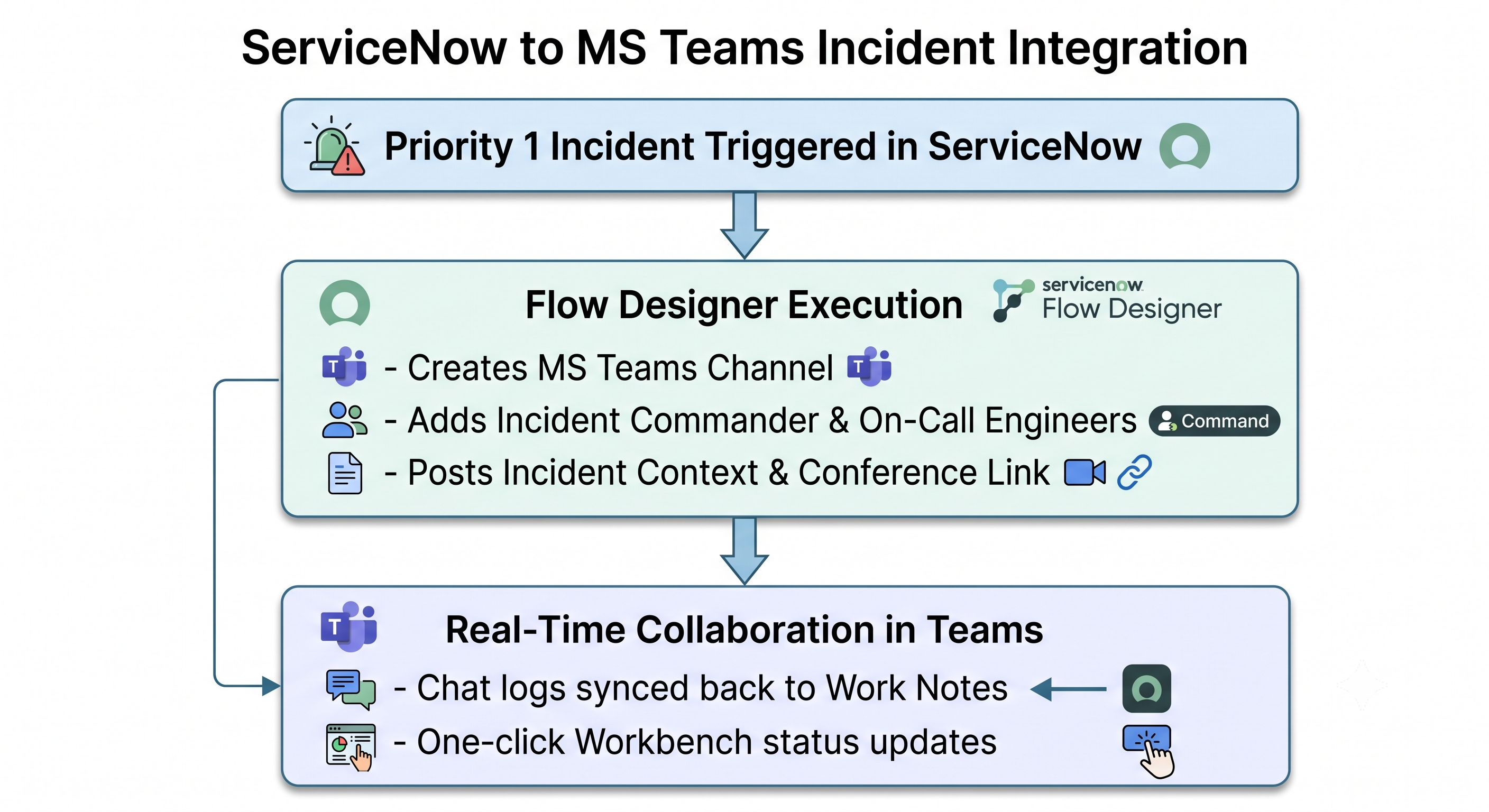
Automation Sequence
Trigger: An incident has been escalated to the major incident level (major_incident_state = accepted).
Automated Provisioning: Flow Designer triggers an operation in Microsoft Teams and provisions the MIM-INC0098412-Database-Outage channel under the IT Operations Team.
Participant roster: It pulls On-Call rotation members through ServiceNow PagerDuty / On-Call Scheduling and invites to the channel.
Two way sync: Customised hash tag triggers (for example, #worknote Server rebooted successfully) help to retain important updates to the Teams channel in the work_notes of the ServiceNow incident log.
Post-Incident Review (PIR) : The Teams chat transcript is saved as a PDF/text file to the incident record for audit and post-mortem review after the incident is resolved.
Configuration blueprint and implementation strategy
It is important to create a multi-phase road map for the successful implementation of the deep integration in an enterprise:
Phase 1: Identity and Authentication Requirements
Key Requirement: ServiceNow email address or username must match Azure AD UPN.
Single Sign-On (SSO): Configure SSO (SAML 2.0 or OAuth) so that users can click on links in Teams and don’t have to log in again.
Admin Consent: Get Azure Global Admin to allow granting of Graph API permissions sn_ms_teams requires (User.Read, Team.ReadBasicIt, ChannelMessage.Send).
Phase 2: Setting Up the ServiceNow Platform
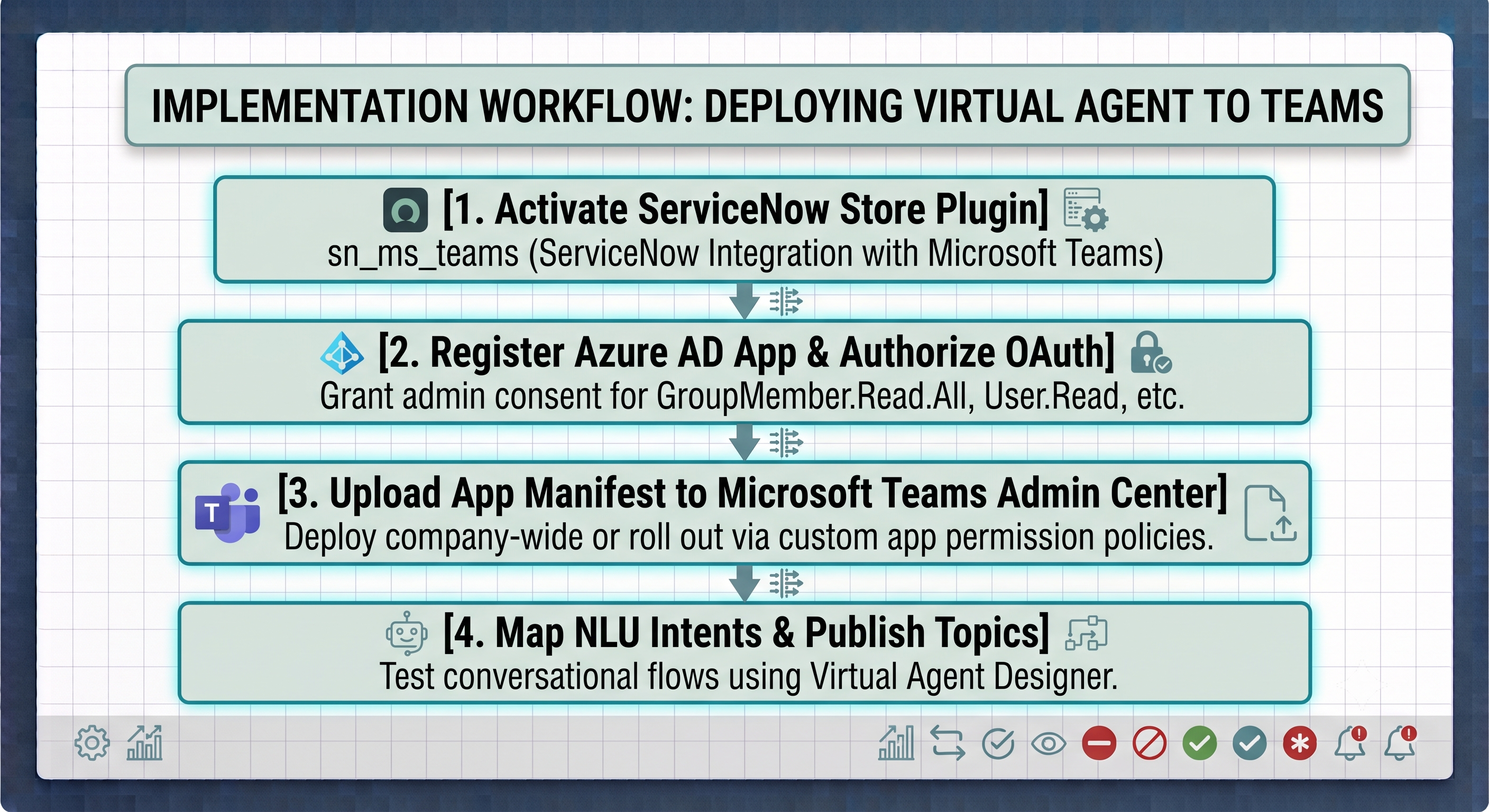
Taking service now training online makes sure that the system administrators gain the necessary skills required for setting up system properties such as sn_ms_teams.enable_card_actions, as well as for setting up deep links.
Plugin Activation:
sn_ms_teams (Integration of Microsoft Teams and ServiceNow)
sn_va_as_teammates (Virtual Agent Integration)
System Properties Setup:
Set sn_ms_teamsenable_card_actions = true.
Set the glide.servlet.uri property for deep linking to reach the Employee Center.
Topics Deployment for Virtual Agent:
Enable out of the box IT and HR topics (eg Check Ticket Status, Password Reset, Software Request).
Build fallback topics for unrecognised NLU queries.
Phase 3: Implementation of Policies for the Microsoft Teams Admin Center
App policy setting: Pinning of ServiceNow app to the left navigation bar in Microsoft Teams to make it more visible.
App permission policy setting: Preventing the use of unauthorized test ServiceNow environments.
Comparative Analysis: Touch Points for Integration
The touch points for ServiceNow-Microsoft Team integration include numerous ones, which are aimed at meeting organizational operation needs and roles of users.
Virtual Agent Bot: The use of a blend of Conversational Integration and the Microsoft Bot Framework enables the creation of Virtual Agent Bot which acts as the main conversational interface for the employees and provides basic self-service capabilities like ticket status check, retrieval of information from knowledge base, and ordering service catalog through chats.
Approvals Using Adaptive Cards: By leveraging Actionable Notifications and webhooks, Approvals Using Adaptive Cards can send out approval requests in a real time interactive manner to managers and members of the CAB. This facilitates decision makers to view relevant information and either approve or reject the request without leaving the Teams environment, hence making the approval process faster.
Embedded Employee Center Tab: Creation of an embedded Employee Center Tab using Microsoft Teams tab that gives the employees immediate access to the full ServiceNow experience. Hence, they can review service catalogs, knowledge articles, and place complex requests without using an external web browser.
Message Extension: Message Extension is a product meant for service desk agents and team leaders that makes use of Teams contextual actions as well as ServiceNow REST APIs. With Message Extensions, virtually any chat conversation can be turned into an actionable record. This allows users to change their channel conversations or any personnel conversations into incidents, tasks or HR incidents instantly and in addition have chat context preserved.
Major Incident Management (MIM) Channel Provisioning: MIM Channel Provisioning utilizes IntegrationHub’s Microsoft Teams Spoke to automate incident response assistance which involves the key incident managers and engineers. During outages with Priority 1 or Priority 2 status, the system automatically creates dedicated Teams channels and fills in the list of on-call technicians, as well as registers important conversations in the Teams channel to ServiceNow Incident records for further assessment.
Enterprise Best Practices & Performance Optimization
Follow these implementation rules that have been shown to be effective to provide system reliability, security, and a high rate of usage:
1. Don’t Notify Fatigue
Don’t send all email notifications to Microsoft Teams.
Concentrate on key and actionable events: Open Approvals, P1/P2 incident alerts and Direct Mentions/Transcripts.
Allow users to configure notifications preferences from the Virtual Agent settings window.
2. Use Standard Adaptive Card Schemas
Make sure that cards are easy to view on a mobile device as users tend to approve using Teams mobile app.
Ensure that the core buttons (Approve, Reject, View Details) are situated on the card so that users will not need to scroll to see them.
3. Ensure CMDB Data Quality
Verify that service ownership and approval chains are updated and correct in ServiceNow (sys_user_group, sysapproval_approver). Auto-generated approvals can lead to issues in fulfilling requests.
4. Track Integrations Performance
Check the sys_watermark and sys_outbound_http_log tables in ServiceNow to see if there are any limits in API usage or delays when using Microsoft Graph APIs.
Set alerts for failed webhooks between ServiceNow and Azure Bot Services.
Endnotes
The combination of ServiceNow and Microsoft Teams is a game-changer for how service management and customer experience are handled in today’s organisations. Historically, IT Service Management (ITSM) and Enterprise Service Management (ESM) have been built on stand-alone web portals. Workers had to exit their workspace, launch a browser, go through complicated catalogues, and fill out requests or incidents. As a result, employees were forced to rely on informal and unmonitored channels of communication.
The integration of ServiceNow in Microsoft Teams means that instead of using complicated, portal-based systems, companies are now able to provide a seamless, integrated experience of service management within the tools available to the employees. Service management can be considered a complementary service during the workday instead of just another task that requires employees to exit the workspace and turn to another technology.
This transformation is made possible with the following three basic operational capabilities:
1. Automated Ticket Creation: It allows service desk agents and employees to register incidents and requests in Teams right from there. They can either initiate the ticket from a chat through message extensions or through a guided chat journey that captures the context without redundancy and loss of important context.
2. Real-Time Adaptive Card Approvals: Approval delays are a frequent reason for failure in service delivery. ServiceNow uses Adaptive Cards to deliver approvals right into the manager’s Teams chat window. This enables decision makers to see data on requests, comment on requests and approve or reject requests without context switching.
3. AI Virtual Agent capabilities: Enabled by AI with natural language understanding capabilities, the ServiceNow virtual agent delivers instant self-service. It helps users make choices and troubleshoots, and answers frequently asked questions. If it can’t resolve the issue, the virtual agent passes the chat to a human, along with the full transcript.
The integration of this technology yields immediate and quantifiable results for businesses.
Significant reduction in MTTR: Automating routing, eliminating manual data entry, and providing immediate approvals lower Mean Time to Resolution during both incident and request lifecycles.
Reduction in service delivery friction: Meeting employees where they already work reduces the entry barriers to self-service, lower the level of administrative overheads, and eliminates reliance on pressure channels for unmonitored "shadow IT" support.
Maximized return on investment for existing investments: By integrating these two enterprise platforms, businesses gain an additional value from the existing software licenses and become more engaged with ServiceNow while maintaining daily use of Microsoft Teams. Investing in good professional servicenow training classes will help your internal teams get the most out of their automated processes having also made them ready to properly maintain them.
In the end, the integration of ServiceNow and Microsoft Teams makes the workplace more efficient by providing employees with instant support, managers with assistants in decision-making process, and IT support services with the ability to automate high-speed delivery of services.