
Software Development
Selenium Installation
Last updated on Jun 15, 2020
Copy Link:

So till now, we have What is selenium and its components. So now let us discuss selenium installation tool in our local system.
But prior to the Selenium tool installation, it is advisable to install JAVA in your in your systems
Follow the steps below to install JAVA in you.
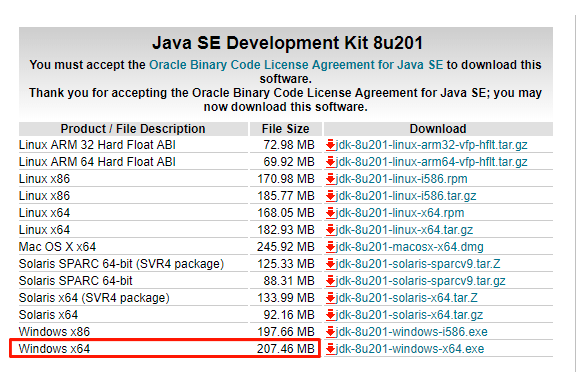
Visit https://www.oracle.com/technetwork/java/javase/downloads/jdk8-downloads-2133151.html to download the latest version of JAVA
In the JAVA SE development Kit 8u201, select your operating system platform
 Once download double click on the exe and click on YES and then click on NEXT
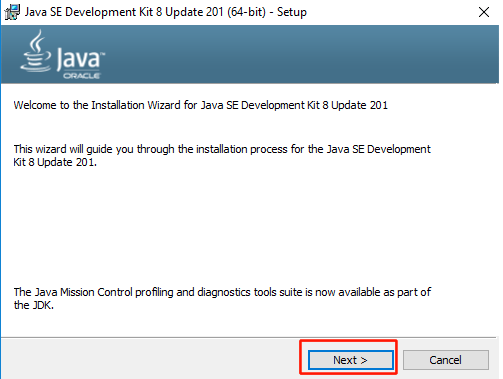 And then Click Next
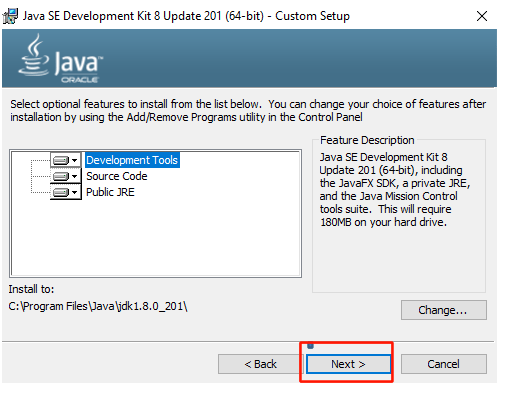 Now click on OK
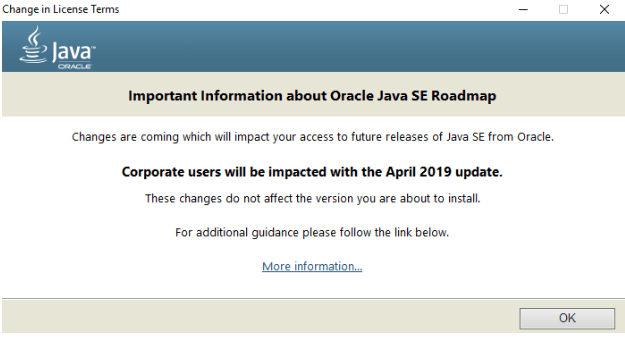 And then click on Next
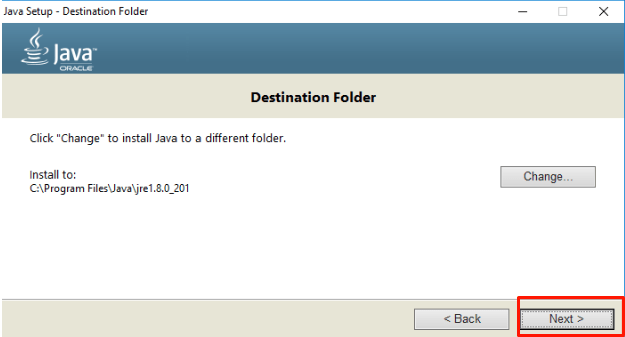 And finally click on Close
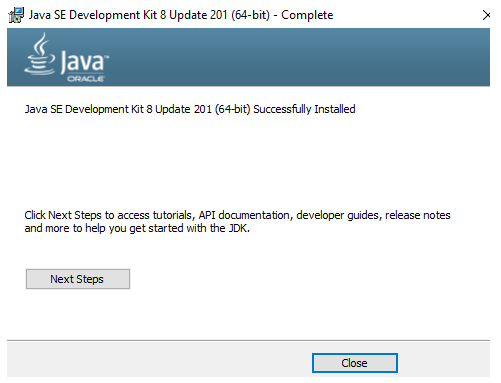 So till now, we have installed JAVA in our system. Now its time to install JRE in our systems
Visit the link below to download the latest JAVA SE platform and Click on Download
https://www.oracle.com/technetwork/java/javase/downloads/index.html
So till now, we have installed JAVA in our system. Now its time to install JRE in our systems
Visit the link below to download the latest JAVA SE platform and Click on Download
https://www.oracle.com/technetwork/java/javase/downloads/index.html
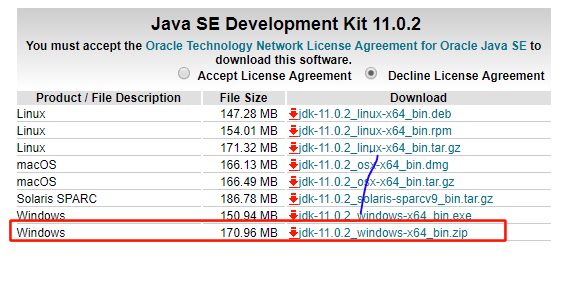
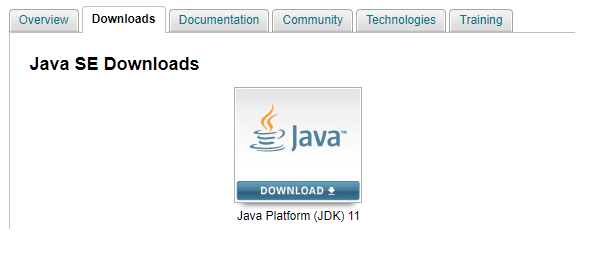 Scroll down the page and check on Accept License agreements and select the operating systems. It is recommended to download the file in Zip format
 Once you have downloaded the RAR file, extract it an run the installer.
Since we have installed both the JAVA and JRE, now its time to Set up the environment.
Path Set up:
Right click on Computer and Click on Properties
Once you have downloaded the RAR file, extract it an run the installer.
Since we have installed both the JAVA and JRE, now its time to Set up the environment.
Path Set up:
Right click on Computer and Click on Properties
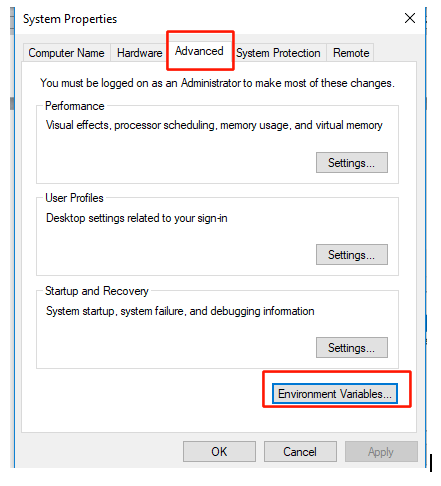
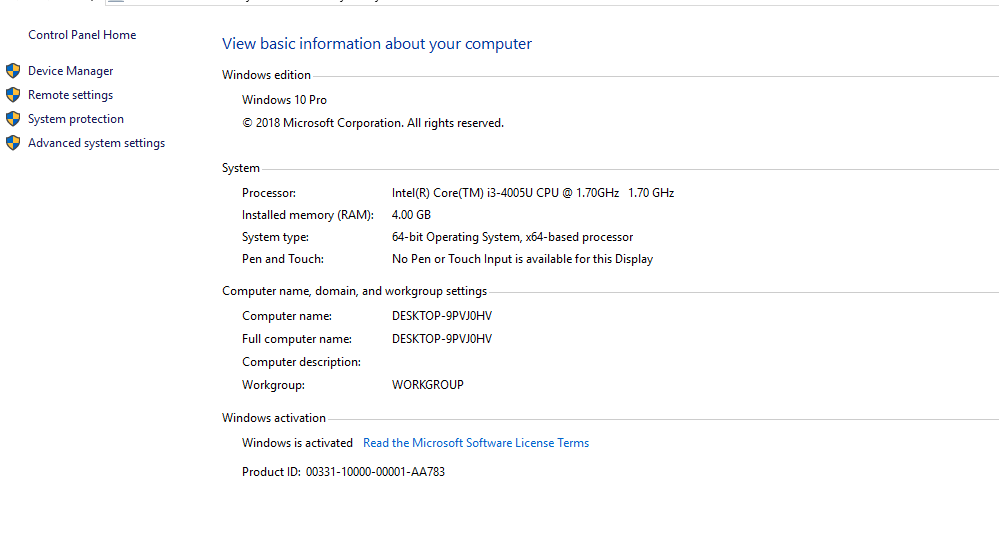 Click on Advanced System Settings and Environmental Variables
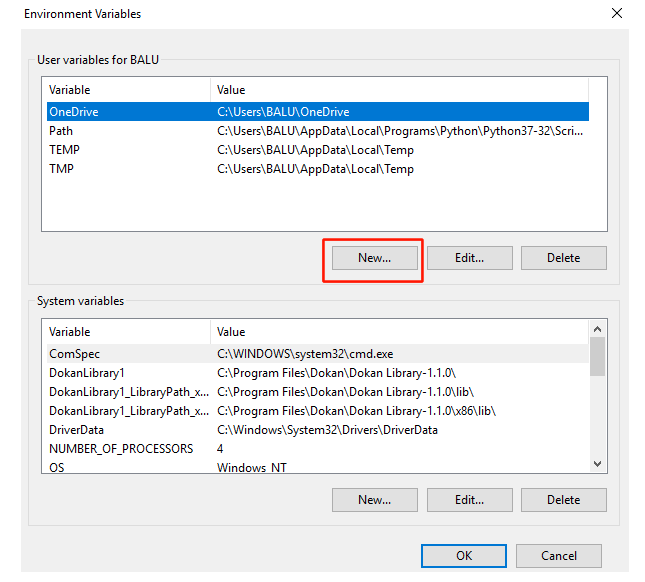 Now Under User Variables Click New and give the variable name as JAVA_Home and give the Variable names as the java installation file address.
You can easily find your JAVA installed address as shown below
C:\Program Files\Java\jdk1.8.0_201\
Now Under User Variables Click New and give the variable name as JAVA_Home and give the Variable names as the java installation file address.
You can easily find your JAVA installed address as shown below
C:\Program Files\Java\jdk1.8.0_201\
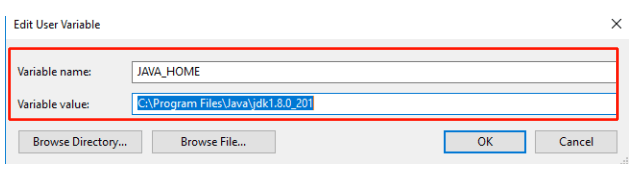 And Click on OK for three times
So after the installation completes, it time to validate the software. This can be done using the following command.
In the command prompt type JAVA and you can see the following screen
And Click on OK for three times
So after the installation completes, it time to validate the software. This can be done using the following command.
In the command prompt type JAVA and you can see the following screen
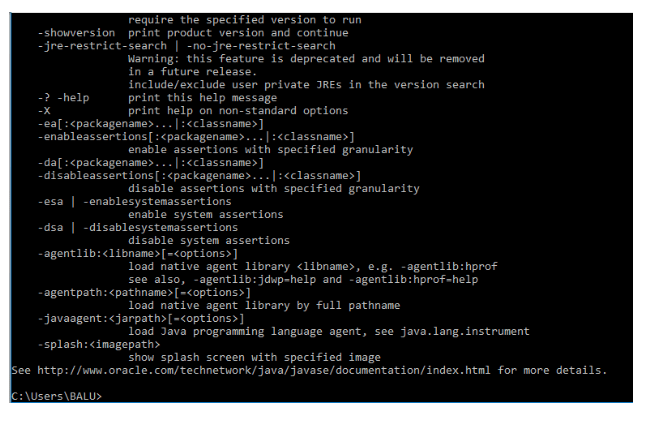 If you have seen the following Screen, you are succeeded in installing JAVA.
So, now we have completed the installation of JAVA and JRE. Now its time to install Eclipse IDE in our Systems
Visit https://www.eclipse.org/downloads/packages/release/indigo/sr2/eclipse-ide-java-ee-developers and select your operating system
If you have seen the following Screen, you are succeeded in installing JAVA.
So, now we have completed the installation of JAVA and JRE. Now its time to install Eclipse IDE in our Systems
Visit https://www.eclipse.org/downloads/packages/release/indigo/sr2/eclipse-ide-java-ee-developers and select your operating system
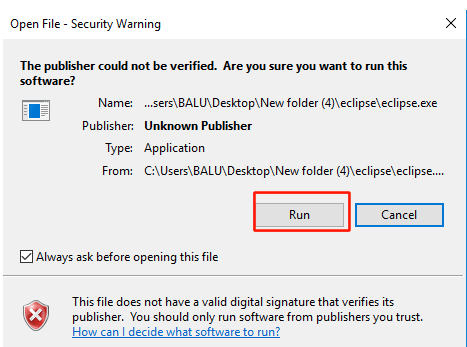
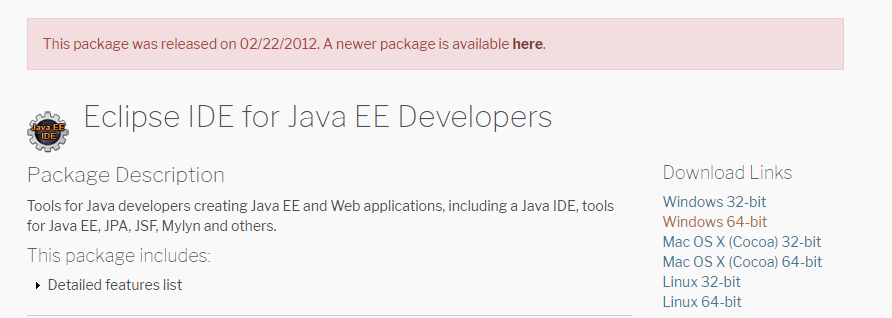 Once downloaded extract the RAR file and run the installer
 A default work-space is provided and you can change if required!!
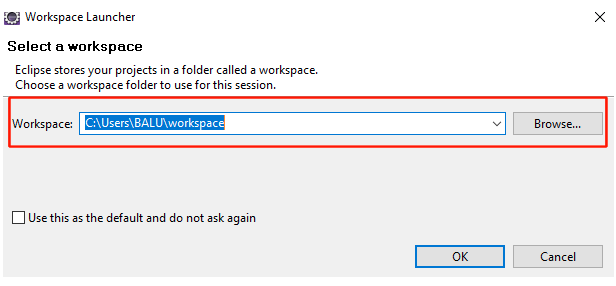 Click OK
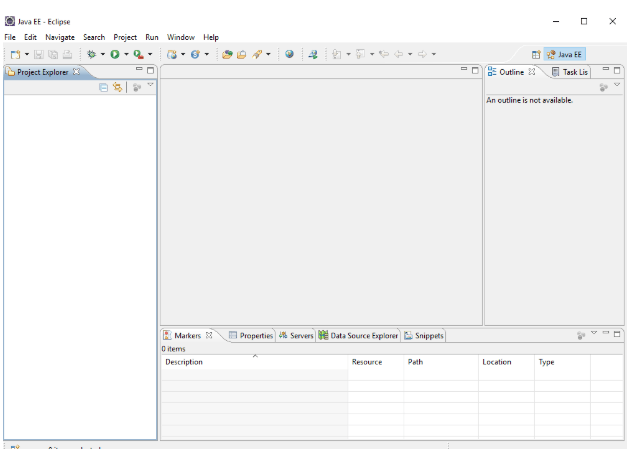
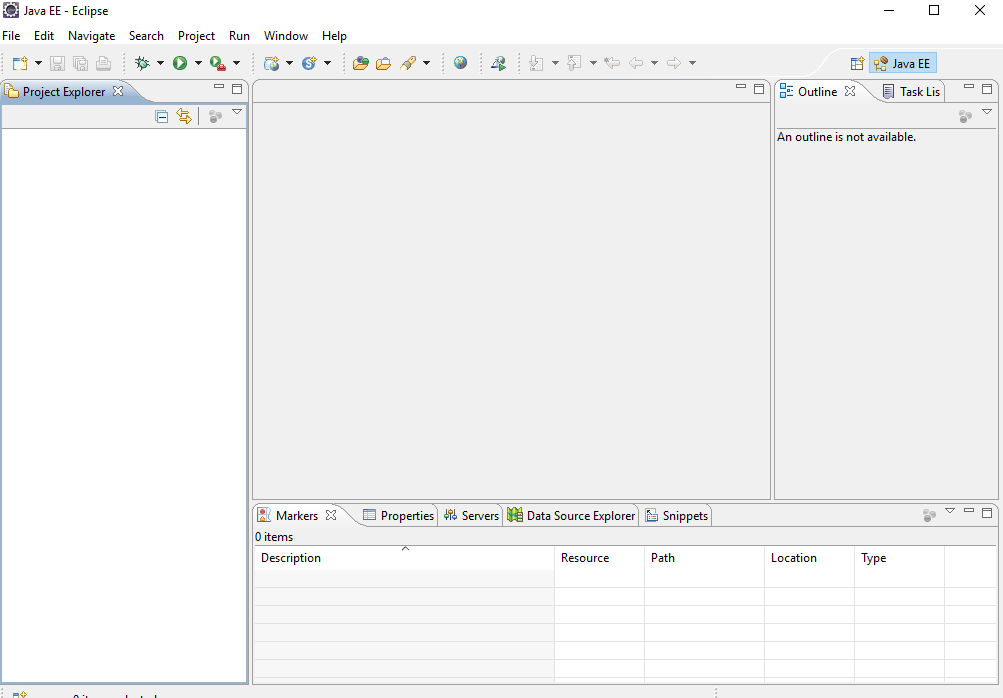
That’s it! a wonderful IDE will be opened as shown below
Click OK
That’s it! a wonderful IDE will be opened as shown below
 So last, but not the least the final step is to install selenium IDE.
 Now Scroll your mouse a bit further to download client and web driver bindings
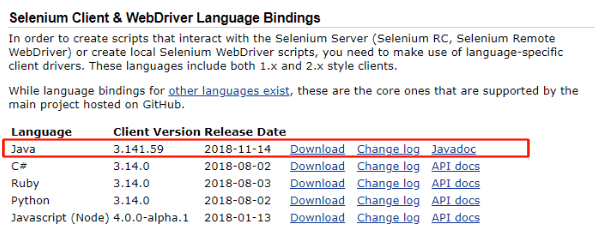 Since for testing, we have used JAVA, just download the JAVA supported installer
Once downloaded, you will be getting the RAR file and extract that file. In the same folder, you will be finding the Drivers for Chrome and Firefox.
Since for testing, we have used JAVA, just download the JAVA supported installer
Once downloaded, you will be getting the RAR file and extract that file. In the same folder, you will be finding the Drivers for Chrome and Firefox.
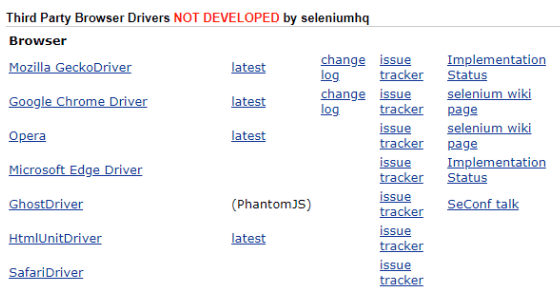 So now, you will be finding various files of different platforms. And now it's time to download the file that supports your systems
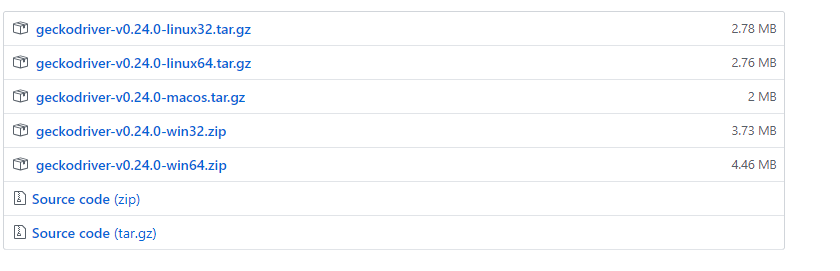 Upon downloading extract the RAR files
In the same page, you will be finding Selenium IDE, for Chrome and Firefox. Click on the browsers to
Upon downloading extract the RAR files
In the same page, you will be finding Selenium IDE, for Chrome and Firefox. Click on the browsers to
 download the files
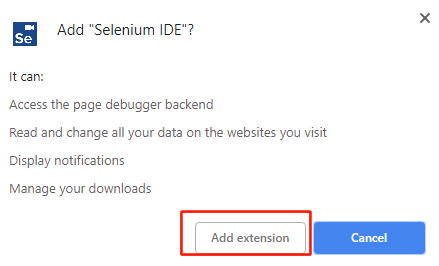 Now Click on Add extension to download the files
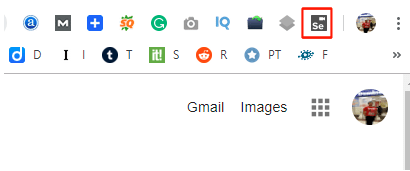 Once downloaded, you will be finding an extension in your browser.
Once you opened the extension, you will be finding the extension like below
Once downloaded, you will be finding an extension in your browser.
Once you opened the extension, you will be finding the extension like below
 So after opening the extension, you need to create a new project. Once opened you will be seeing the following Screen
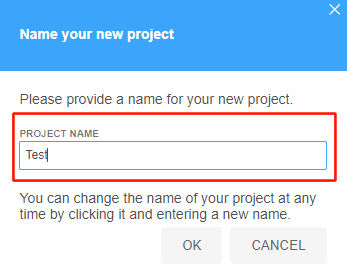
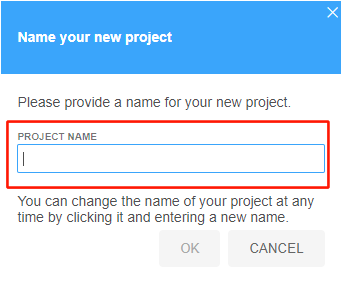 Here give any name to the project and click OK
 And finally, you will be finally entered into the following screen.
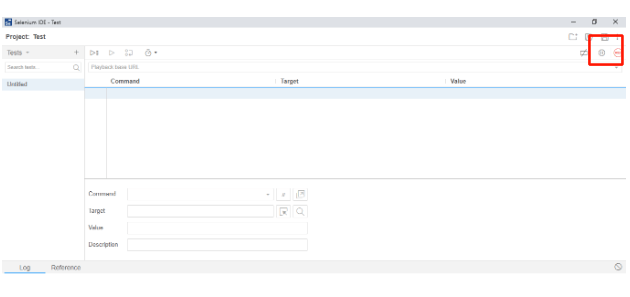 This you have successfully completed all the installations to your project and you can start testing the applications.
Firepath and Firebug:
Like Selenium IDE, these Firepath and Firebug have an extension in Browsers like Chrome and Safari. And you people can easily add an extension to the respective browsers.
Click the link to know more on Firebug and Firepath
This you have successfully completed all the installations to your project and you can start testing the applications.
Firepath and Firebug:
Like Selenium IDE, these Firepath and Firebug have an extension in Browsers like Chrome and Safari. And you people can easily add an extension to the respective browsers.
Click the link to know more on Firebug and Firepath
Once download double click on the exe and click on YES and then click on NEXT
And then Click Next
Now click on OK
And then click on Next
And finally click on Close
So till now, we have installed JAVA in our system. Now its time to install JRE in our systems
Visit the link below to download the latest JAVA SE platform and Click on Download
https://www.oracle.com/technetwork/java/javase/downloads/index.html
Scroll down the page and check on Accept License agreements and select the operating systems. It is recommended to download the file in Zip format
Once you have downloaded the RAR file, extract it an run the installer.
Since we have installed both the JAVA and JRE, now its time to Set up the environment.
Path Set up:
Right click on Computer and Click on Properties
Click on Advanced System Settings and Environmental Variables
Now Under User Variables Click New and give the variable name as JAVA_Home and give the Variable names as the java installation file address.
You can easily find your JAVA installed address as shown below
C:\Program Files\Java\jdk1.8.0_201\
And Click on OK for three times
So after the installation completes, it time to validate the software. This can be done using the following command.
In the command prompt type JAVA and you can see the following screen
If you have seen the following Screen, you are succeeded in installing JAVA.
So, now we have completed the installation of JAVA and JRE. Now its time to install Eclipse IDE in our Systems
Visit https://www.eclipse.org/downloads/packages/release/indigo/sr2/eclipse-ide-java-ee-developers and select your operating system
Once downloaded extract the RAR file and run the installer
A default work-space is provided and you can change if required!!
Click OK
That’s it! a wonderful IDE will be opened as shown below
So last, but not the least the final step is to install selenium IDE.
Selenium Installation
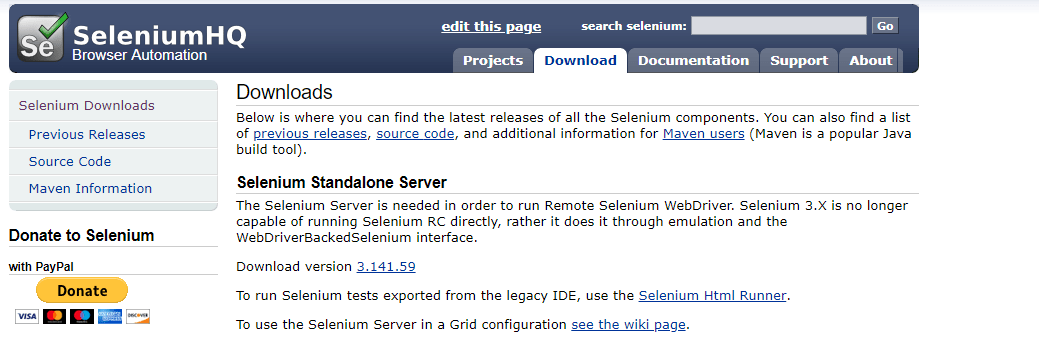
Visit https://www.seleniumhq.org/ to download selenium latest version! In the downloads, visit Standalone server and click on Download.
Now Scroll your mouse a bit further to download client and web driver bindings
Since for testing, we have used JAVA, just download the JAVA supported installer
Once downloaded, you will be getting the RAR file and extract that file. In the same folder, you will be finding the Drivers for Chrome and Firefox.
So now, you will be finding various files of different platforms. And now it's time to download the file that supports your systems
Upon downloading extract the RAR files
In the same page, you will be finding Selenium IDE, for Chrome and Firefox. Click on the browsers to
download the files
Now Click on Add extension to download the files
Once downloaded, you will be finding an extension in your browser.
Once you opened the extension, you will be finding the extension like below
So after opening the extension, you need to create a new project. Once opened you will be seeing the following Screen
Here give any name to the project and click OK
And finally, you will be finally entered into the following screen.
This you have successfully completed all the installations to your project and you can start testing the applications.
Firepath and Firebug:
Like Selenium IDE, these Firepath and Firebug have an extension in Browsers like Chrome and Safari. And you people can easily add an extension to the respective browsers.
Click the link to know more on Firebug and Firepath